
Opening & Closing Positions
Most of your positions arrive on their own, from a template you run or a strategy that fires (see Placing a trade and Running a strategy). Plenty still needs doing by hand: record a trade you opened somewhere else, close one early, split it, settle it at expiration, or clear out several at once. All of that lives on your Dashboard.
Record a position you opened elsewhere
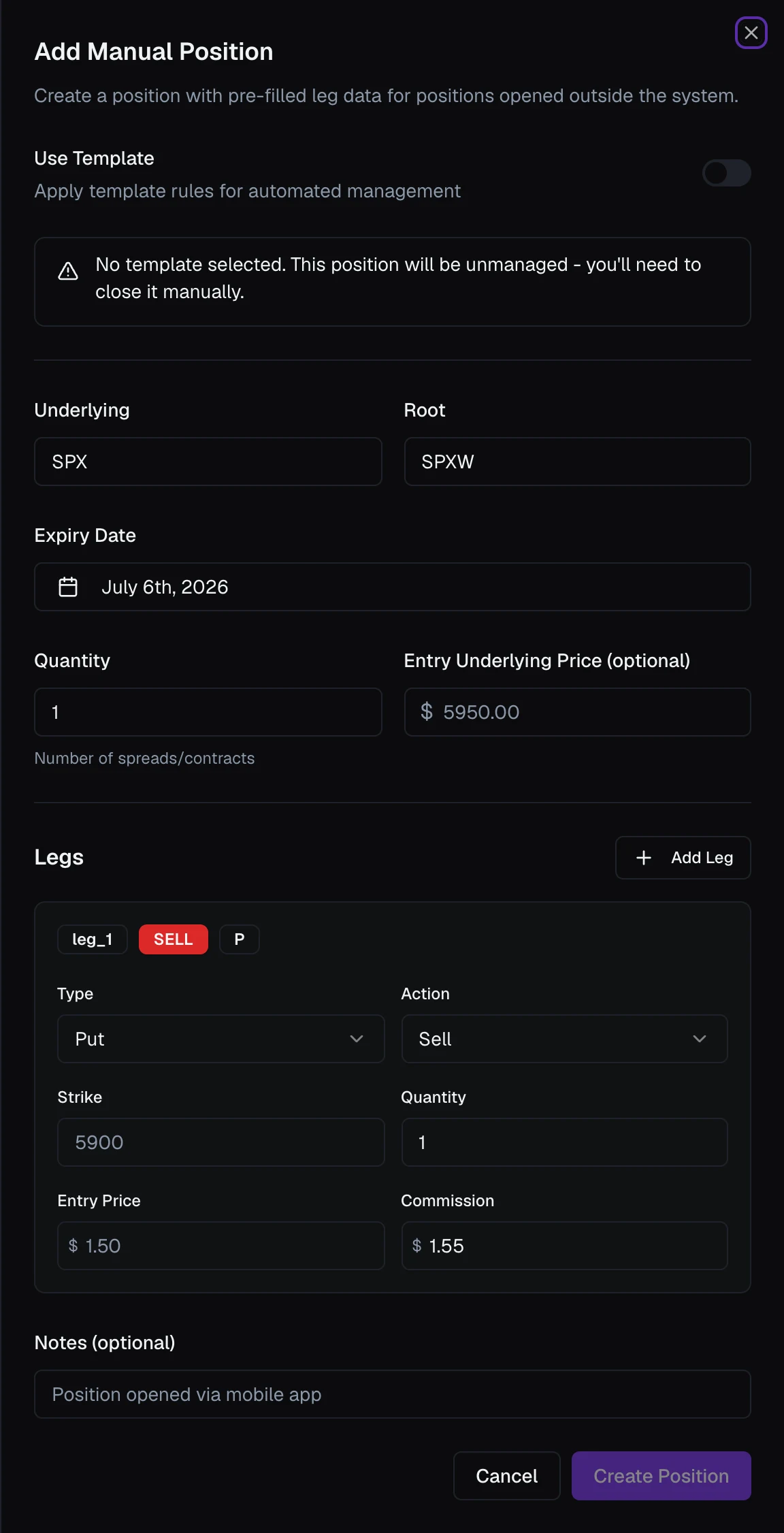
The Add Manual button, at the top of the Positions table on your Dashboard, opens the Add Manual Position sheet. Use it to log a position you opened outside VolNinja (by hand at your broker, say) so VolNinja can track and manage it alongside everything else.
Important
Adding a manual position records a trade you already have. It does not send a new order to your broker. To have VolNinja place a trade for you, run a template instead: see Placing a trade.
In the sheet you set:
- Use Template — turn this on and choose a template, and the position inherits that template's rules and management. Leave it off and you'll see a reminder that the position is unmanaged, so you'll have to close it yourself.
- Underlying — SPX, XSP, SPY, or QQQ. Root fills in from that choice. Then the Expiry Date and Quantity (number of spreads/contracts). Entry Underlying Price is optional.
- Legs — for each leg, its type (Put/Call), action (Sell/Buy), strike, quantity, entry price, and commission. Use Add Leg for more (a template fills its own legs for you).
- Notes — optional.
Click Create Position and it joins your Dashboard.
Close a position
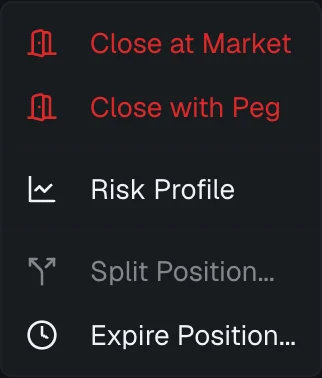
Open the ⋯ menu on any open position's row. There are two ways out:
- Close at Market — sends a market order; it fills right away at whatever the market is.
- Close with algo — a menu of your limit-based execution algos by name (Walk to marketable, Urgent, Rest at mid, plus any you've saved). These work the order to try for a better price, which can take longer and isn't guaranteed to fill. Manage algos at the bottom opens the library.
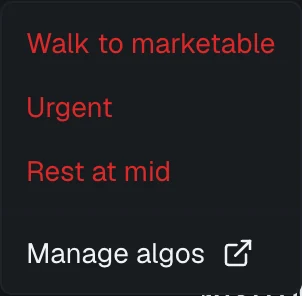
Whichever you pick opens a Close Position confirmation that shows the position, its legs, current P&L, and the execution style you picked. Nothing happens until you press Confirm Close. While an algo close is working, the row shows CLOSING... in place of its menu, with a View button that opens a progress view of how the order is being worked.
When a rule is already working on it
If one of the position's rules is in the middle of acting on it, working its own order, the confirmation shows an amber warning, A rule is working on this position right now, naming the rule. Your close takes priority: confirming cancels what the rule was doing, so its order cannot fill after the position is gone. The same warning appears when you close a single leg and in the Close All confirmation.
Closing a tranched trade
A trade opened in tranches shows on the Dashboard as one summary row. Closing from that row's ⋯ menu closes every open tranche together, through the same confirmation as Close All. To close only one tranche, expand the row and use that tranche's own menu.
Close a single leg
Sometimes you want to take off one side (buy back a tested short put, say) and leave the rest of the position running. You do that from the position's details, not the Dashboard row. Open the position to bring up its Details sheet (see Position details) and go to the Overview tab. There are two ways to close a single leg:
- From the leg's ⋯ menu — each leg row in the Legs card has a ⋯ menu with Close at Market and Close with algo.
- From the expanded leg — click a leg row to expand it, and the same Close at Market and Close with algo buttons sit at the bottom of its details, next to Edit.
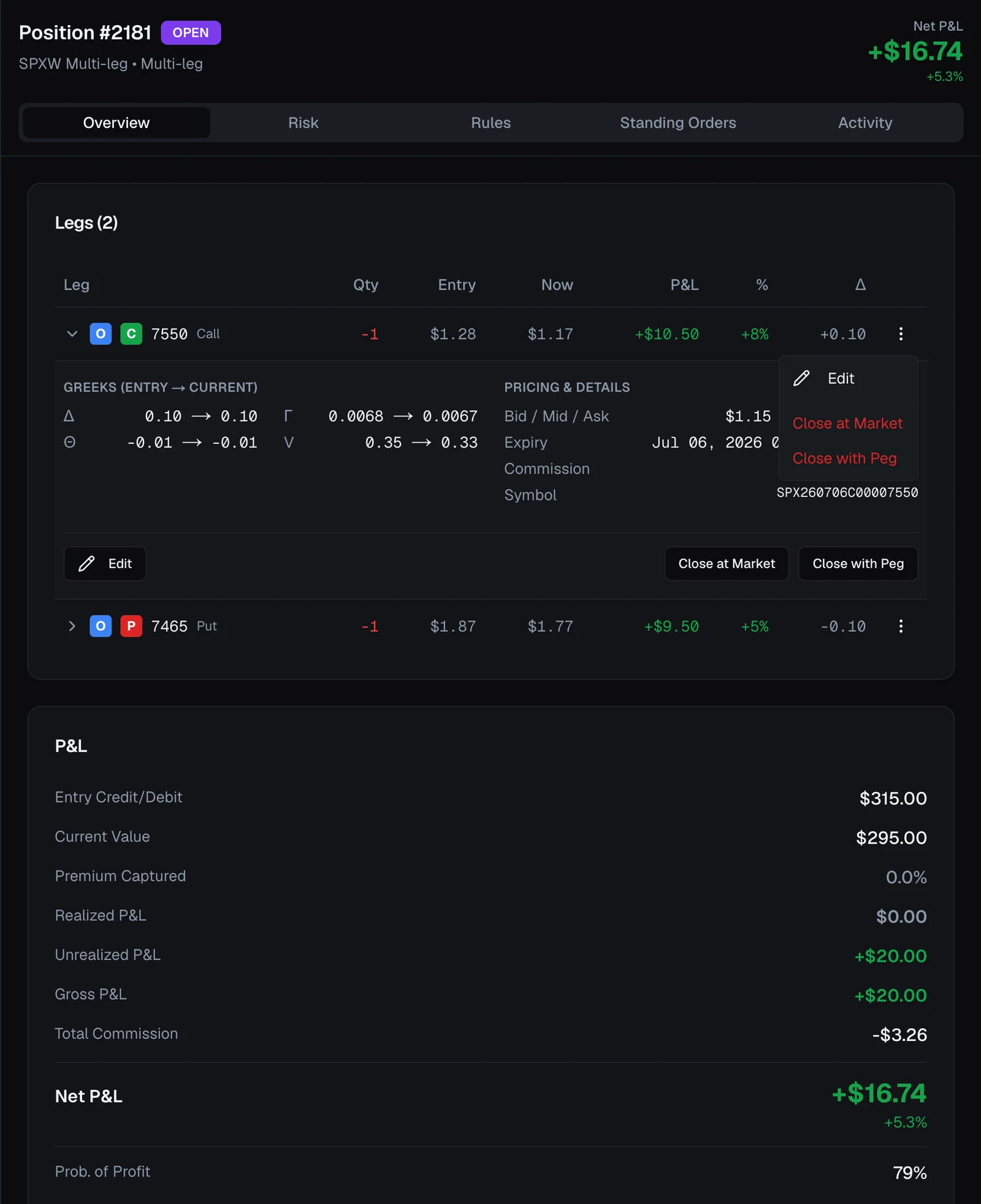
Either way you get the same execution choices as closing a whole position, scoped to that one leg. The choice opens a Close Leg confirmation showing the leg, its current bid / ask / mid and estimated P&L. Nothing happens until you press Confirm Close, and an algo leg close shows its own progress view while it works. The rest of the position carries on unchanged.
To move a leg to a different strike instead of closing it outright, use Roll Leg… from the same menu (see Rolling a leg).
Split a position
Split Position… (same ⋯ menu) spins part of a position off into a new child position, leaving the original (with its rules, orders, and history) untouched. In the dialog you set, per leg, how many contracts to spin off; it shows how many move to the child and how many stay on the parent. It's handy for taking partial profit on some contracts while letting the rest run. Confirm with Split Position.
A split trades nothing: it only re-divides the position in VolNinja's records. If any of its rules has an order resting at your broker, VolNinja resizes that order to match the contracts left on each side.
Expire a position
At expiration you can settle a position instead of trading out of it. Expire Position… (⋯ menu) opens a dialog where you enter the underlying's settlement price at market close; VolNinja expires the open legs and works out the settlement from that price, so you book the expiration outcome without sending closing orders.
This is the natural fit for SPX and XSP, which are cash-settled: the position ends in dollars and nothing is delivered.
Warning
SPY and QQQ are different. They settle in shares, and a short leg can be assigned to you at any time, not only at expiry. Expiring such a position in VolNinja records the outcome, but it does not reflect any stock Interactive Brokers has actually delivered or called away. If you hold SPY or QQQ options through the close, check your IBKR account for assigned share positions and deal with them there.
Close several at once
The Close All (N) button above the table closes every open position that matches your current filter. The filter sets the scope: if you've filtered the table to Credit, Close All touches only those. Pick Close at Market or Close with algo, and a dialog lists exactly what will be closed (each position, the credit/debit mix, and the total premium and P&L) before you confirm.
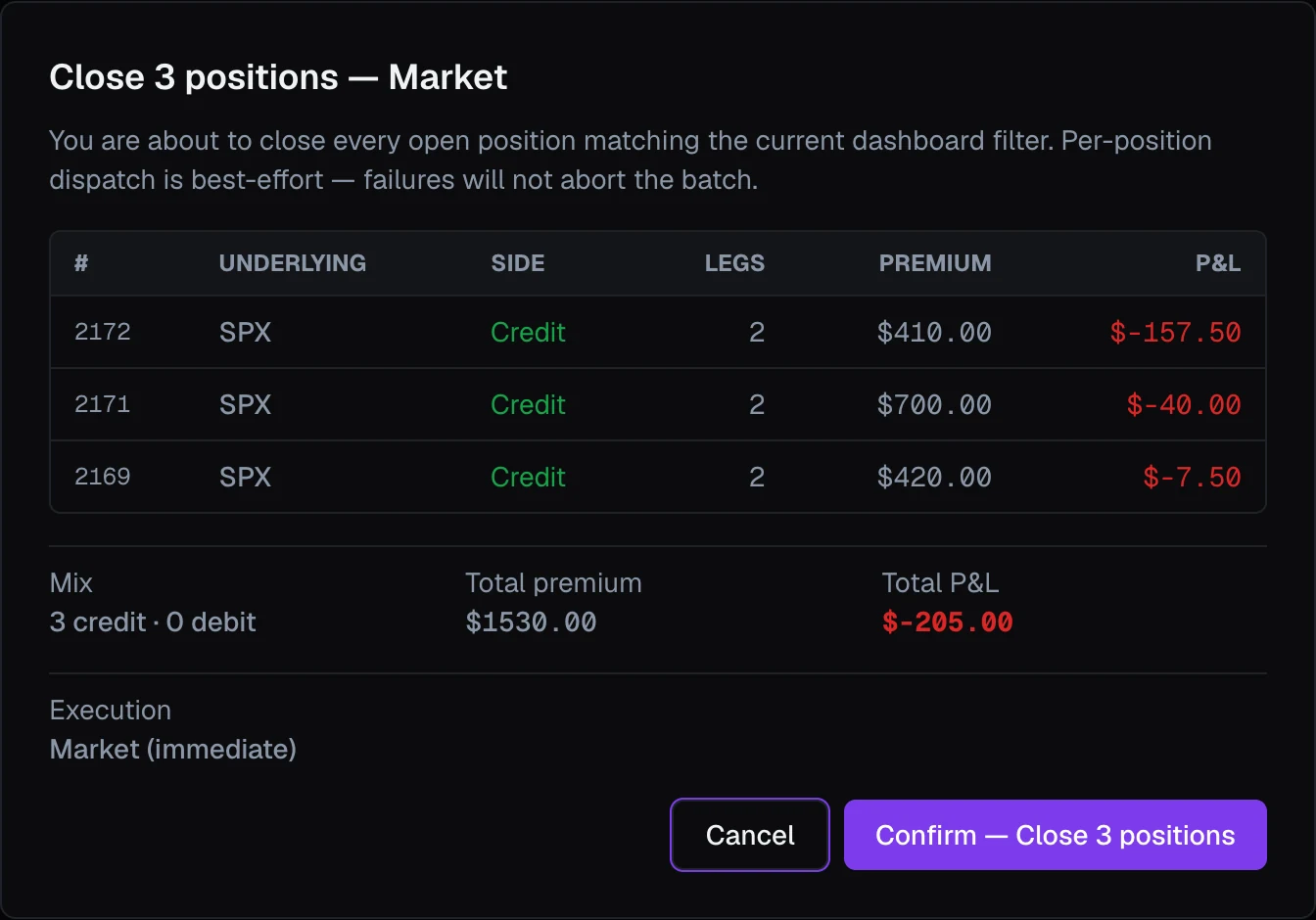
Closing is best-effort per position: if one fails, the rest still go through.
Tip
Scope Close All with the filters first. Narrow the table to the side (credit/debit), open/closed, or full/partial set you mean, and Close All acts on exactly that subset. See Positions overview.
Important
The close, split, and expire actions are greyed out ("Order actions are temporarily disabled") while VolNinja cannot reach your machine, or after your subscription has ended. See Troubleshooting.
Warning
In LIVE, closing places real orders against your real account; in Paper it hits your paper account. Splitting and expiring send no trades: they only update VolNinja's records. Never submit test orders while you are in live mode. See Paper vs live.