
Managing Your Account
Your Account page on the VolNinja website is the control panel for everything about your account: your plan, your password, the machine you've paired, and the email you get. It is separate from the trading app by design, and nothing here touches your positions, your rules, or your broker connection, which stay on your own machine (see How VolNinja works).
Sign in at volninja.com and you land on it; you can also go straight to volninja.com/account at any time. The header shows which address you're signed in as, and Open trading app takes you to your trading dashboard.
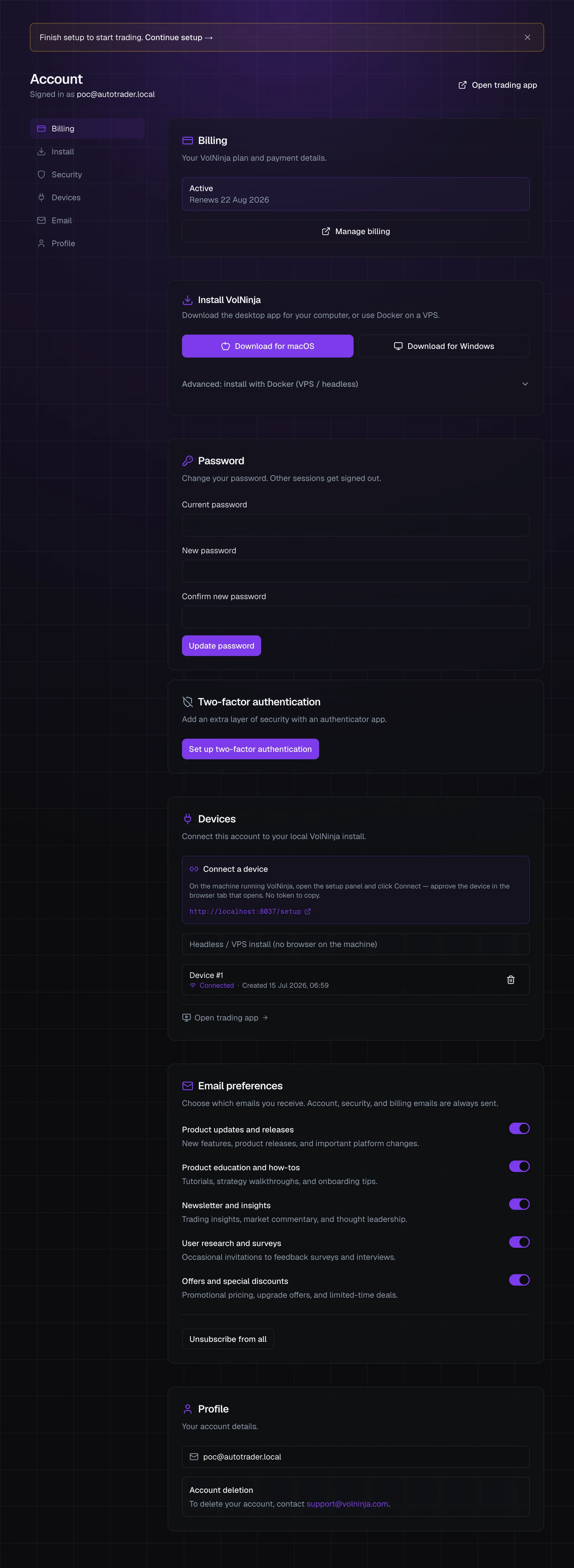
Down the left is a rail of the page's six sections (Billing, Install, Security, Devices, Email, and Profile), which follows you as you scroll. On a phone the rail is hidden and the sections stack.
Tip
If you haven't finished setting up, an amber Finish setup to start trading banner sits at the top with a Continue setup → link back to the onboarding checklist. Dismissing it doesn't lose your place; the checklist remembers what's done.
Billing
Billing shows where your subscription stands: Trial with the days remaining, Active with the renewal date, Payment is late, or Ended. Manage billing hands you off to the secure billing portal, where you can change your card, switch billing period, download invoices, or cancel.
The whole subscription story, including starting a trial and what happens if a payment fails, is in Account & billing.
Install
Install VolNinja is the permanent home of your download links: Download for macOS, Download for Windows, and an Advanced: install with Docker (VPS / headless) section for the terminal path. This is where you come back when you want to install VolNinja on a different computer. See Installing & starting VolNinja, or Advanced: Docker & VPS install for the terminal path.
Security
Two cards live under Security, and both matter more once you can reach your trading app from anywhere.
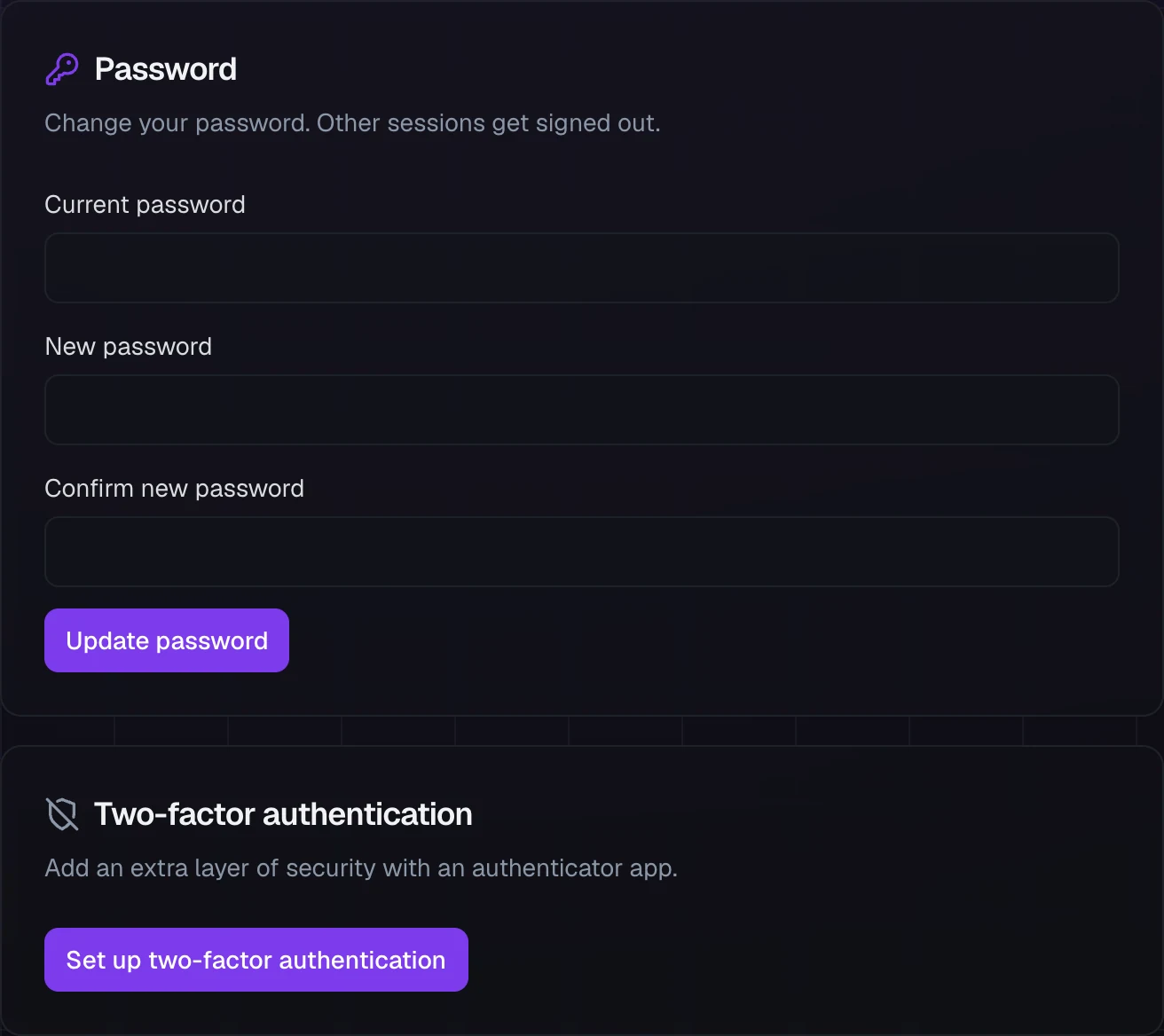
Password takes your current password, a new one, and a confirmation. Changing it signs out every other session, which is what you want if you suspect someone else has your password.
Two-factor authentication adds a code from an authenticator app on top of your password. Choose Set up two-factor authentication, scan the QR code with your app (1Password, Google Authenticator, Authy, or similar), enter the 6-digit code, and choose Verify and enable. From then on you're asked for a code each time you log in.
Once it's on, the card offers Disable MFA and Regenerate recovery codes instead; both ask for your password first.
Warning
When you enable two-factor authentication you're shown a set of recovery codes, once. Save them somewhere safe before you tick I've saved these recovery codes in a safe place. They are how you get back in if you lose your authenticator app. Regenerating codes later invalidates the old ones.
Devices
Devices is the link between this account and the copy of VolNinja running on your machine. Pairing is what lets you reach your trading app from any browser. Pairing a device covers how it works and what approving a device grants.
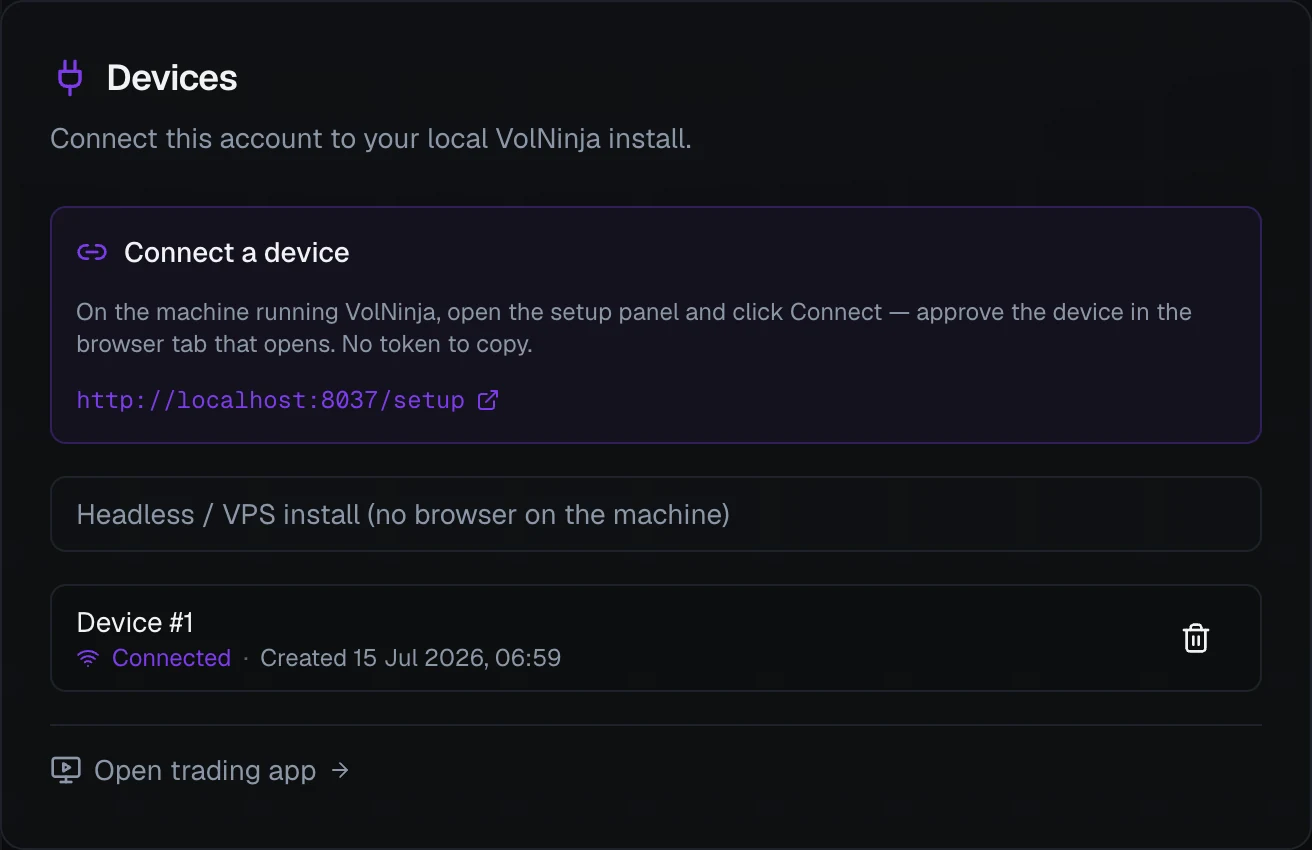
Connect a device tells you what to do on the machine itself and links to its setup panel. For a server with no browser, expand Headless / VPS install for the command to run there instead. Until your subscription is active, this panel reads Subscribe first: an active trial or subscription unlocks pairing.
Below it, each paired machine gets a row showing:
- Device #N — its number, plus revoked if you've already cut it off.
- Connected, or Disconnected with when it was last seen — a live read on whether your machine is reachable right now.
- Created — when the device was paired.
- A trash icon that revokes it.
Important
Your account points at one machine at a time. Pairing a new machine automatically replaces the previous one, so there is no need to revoke the old device first.
Warning
Revoking cuts more than remote access. Your install needs a live link to your account to trade at all, so a revoked machine stops opening and managing positions until you pair it again. You would have to manage anything you're holding directly at your broker. Revoke when you've lost control of a machine or are retiring it, not as a way to pause trading. To pause trading, stop VolNinja on the machine itself.
Email preferences control which non-essential email we send you: Product updates and releases, Product education and how-tos, Newsletter and insights, User research and surveys, and Offers and special discounts. Each is a switch that saves the moment you flip it, and Unsubscribe from all turns off the lot at once.
Important
We always send account, security, and billing email: password resets, verification links, payment failures, and the like. Those are how you keep control of your account, so they aren't optional.
Profile
Profile shows the email address tied to your account. Under Account deletion, you close your account by contacting support at the address listed there. We handle deletion by request so that nothing is removed by accident.
Related
- Account & billing — creating your account, plans, trials, and subscriptions.
- Pairing a device — connecting a machine, and what approving one grants.
- Remote access — reaching your trading app from anywhere, safely.
- Installing & starting VolNinja — installing on a new machine.