
Where Rules Run: Broker vs App
Every rule you write runs in one of two places. Where it can, VolNinja turns it into a standing order: a real exit order resting at Interactive Brokers, which fires on its own even if VolNinja, your automations, or your computer are switched off, as long as your broker connection is running. Where it can't, the rule runs in the app, which watches the position and acts while VolNinja is running.
You don't choose, and you never create a standing order by hand. You write rules, and VolNinja places at the broker every rule it can express as a resting order. This article explains what that decision depends on, how to read it on a live position, and what makes an order come and go during the life of a trade. For the bigger picture of automating an exit, start with Automating exits & management.
Important
Standing orders place real exit orders at your broker. Always validate their price levels and behavior on a paper account before relying on them with real money.
Reading where your rules stand
Open a position and go to its Rules tab. The card header counts how many of the position's rules are currently resting at the broker — "2 of 2 standing", counted out of the rules that can rest, so one with no P&L target is not in the denominator. Every rule carries a badge:
| Badge | Meaning |
|---|---|
| standing at broker | A real order is resting at Interactive Brokers right now. |
| runs in app | VolNinja enforces this rule itself, while it is running. |
| arming… | The order has been sent and VolNinja is waiting for the broker to accept it. |
| cancelling… | The order is being withdrawn from the broker. |
When a rule can't rest, the badge keeps its state and adds the reason after a dot — runs in app · no price to rest at, runs in app · another position already holds this contract's order slot. Those are explained under where a rule can't rest. One reason is only about the clock: runs in app · until regular hours appears on a stop when no session is open — between sessions, over a weekend, on a holiday — and the stop goes back to the broker when the next session opens. Through extended hours a stop keeps standing.
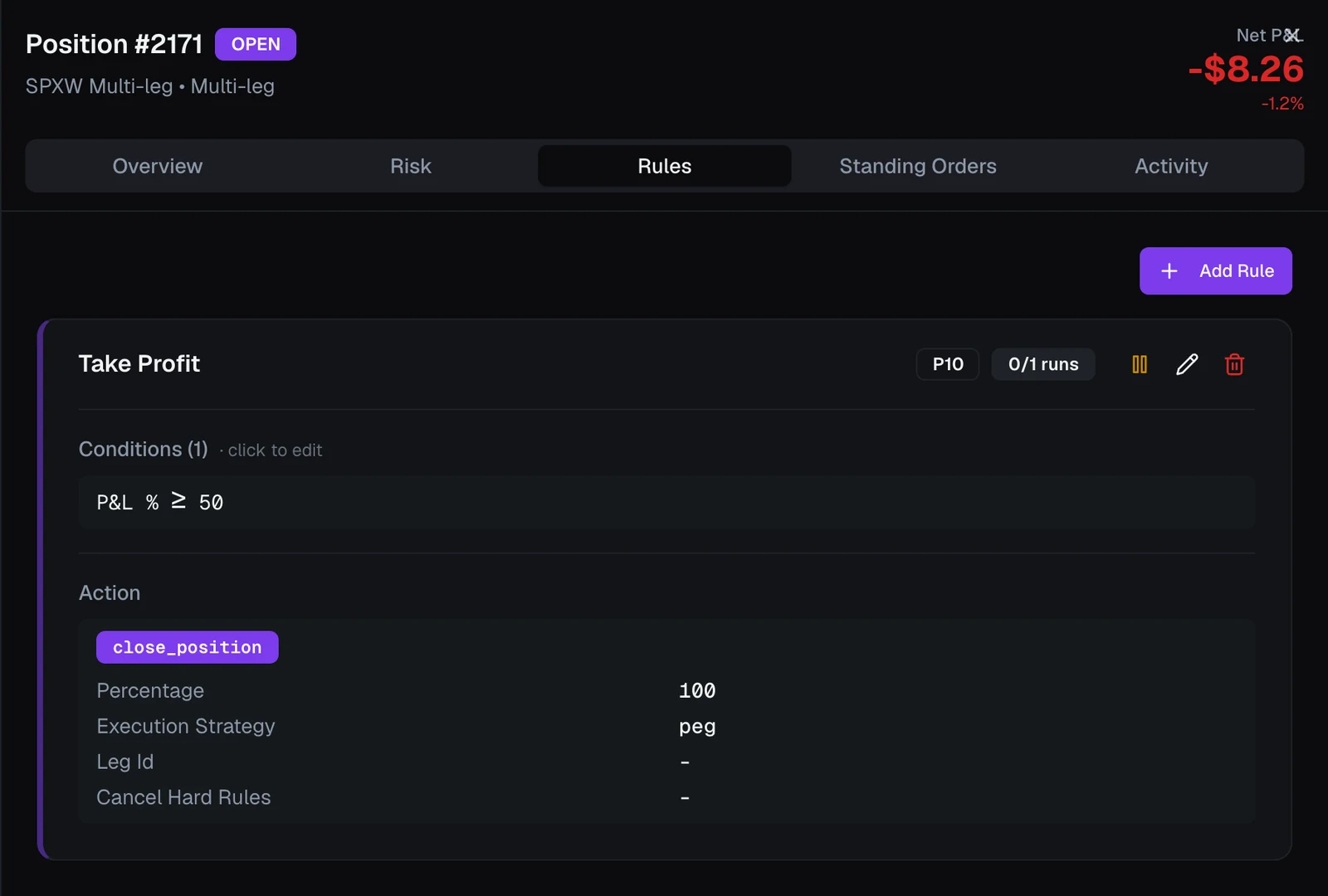
This is the authoritative view. A rule's badge reflects what is true at your broker at that moment, not what was intended when you wrote it. A badge reading runs in app · the broker refused it means your broker would not accept that order, so VolNinja is enforcing the rule itself and retrying. One more to know: standing at broker · price not updating means the order is resting, but at a level VolNinja has stopped being able to move — it is still protection, just frozen where it is.
Once a position is closed or expired, its rules run nowhere, so the badges and the standing count disappear rather than claiming a venue that no longer exists.
Which rules rest at the broker
A resting order can watch exactly one price level and do one thing when it's reached. So a rule rests when you give it exactly that: a P&L target.
The target is a field on the rule, not something VolNinja works out from your conditions. You choose a direction — Profit or Loss — a number, and whether that number is a percentage of the initial premium or a dollar amount per lot. The editor reads the result back to you as a sentence, so there is no guessing: Take profit at 50% of initial premium, Stop loss at $400 per lot.
A dollar amount is per lot — one copy of the template's legs at their ratios; the Multiplier you set when you open the position decides how many lots it holds. A $400 stop fires at $400 per lot whether the position is a 1-lot or a 4-lot, the same way 50% of initial premium means the same thing at any size.
- A loss target becomes a stop order, which your broker turns into a market order when it triggers.
- A profit target becomes a limit order resting at your level.
One target, one order. What the order covers comes from the rule's action: a Close Position rule protects the position as a whole, a Close Leg rule protects that one leg — and on a leg, a percentage is a percentage of that leg's initial premium, which is why the editor names the leg in the sentence it shows you.
Levels resolve from the position's actual fills when it opens, so protection reflects what you really paid or received. If the position was rolled, a percentage level still anchors to the original premium and accounts for the P&L the roll already realized.
A rule with no target rests nothing and runs in the app. That is a perfectly normal rule to write — a time-based exit or a roll has no single price to sit at — and the editor says so in place of the empty field: No P&L target — this rule runs in the app.
What your conditions do instead
Your conditions are not where the price comes from. They are the gate: the order is allowed to rest while they hold, and is withdrawn when they stop holding. The editor names this for you — the conditions heading reads While these conditions hold once a target is set, and When these conditions are met when there is none.
That makes the shape of the condition tree cheap. Join rows with and or or however you like; the logic decides when the order stands, never whether it can:
| What you wrote | What happens |
|---|---|
| Target Loss 100%, no conditions | A stop rests from the moment the position opens. |
| Target Loss 100%, gated on after 10:00 | No order before 10:00, a resting stop after it — see arming, below. |
| Target Profit 50%, gated on underlying below 6000 | A limit rests while the underlying is under 6000, and is pulled when it isn't. |
| No target, conditions only | Runs in the app: there is no level to rest at. |
Important
A take-profit and a stop are two rules, because each carries one target. Write them separately and both rest at the broker in the same group, where the first to fill cancels the other. Putting both levels in one rule's conditions does not produce two orders — it produces a rule with no target, which runs in the app.
The editor catches this: a rule with price conditions and no target is flagged "This rule runs in the app: it has price conditions but no P&L target. Move the level into the target to rest it at the broker." The rule still saves and works; it just runs in the app until you move the level into the target.
Arming: an order that comes and goes
VolNinja places the order when the gate holds and withdraws it when it stops holding, so a Loss 100% target gated on "after 10:00" means no order at the broker before 10:00 and a resting stop after it.
This is normal and it is visible: that rule reads runs in app in the morning and flips to standing at broker at 10:00. A badge changing during the day usually means arming, not a problem.
What the resting order does not carry
A rule that rests still has an execution algo on its action, and the two apply at different moments. While VolNinja is running it handles the exit itself and works the order with your algo, which may get a better fill than taking whatever the book offers. The order resting at Interactive Brokers is the backstop underneath that: a plain stop or limit, with no algo, that the broker executes on its own if the app isn't there to work it.
So choosing a patient algo does not make your protection patient — it makes the app's attempt patient, and leaves the broker's backstop exactly as blunt as a stop order is. That is the trade you are making when you rely on a resting order.
Seeing it for a real trade
The template editor doesn't predict any of this, on purpose — until a position opens, the entry price isn't known, so the levels a rule would rest at aren't either. Open a position from the template, look at its Rules tab, and read the badges. That is the only place the answer is real. If you're rehearsing a template, do it in Paper and read the badges there.
Whole position or single leg
VolNinja rests protection on whichever structure the rule targets:
- The whole position exits every leg together as one combination order — the natural choice for managing a spread as a unit, such as a stop on the net value of a strangle.
- A single leg protects that leg on its own, for example a stop on only the short call.
A position's resting exits all sit on the same structure. If some of your rules target the position as a whole and others target individual legs, VolNinja rests the ones carrying your stops and runs the rest in the app, badged so you can see it. This is deliberate: a mix of both at the broker can leave an order resting against a position that has already changed shape.
One fills, the rest are cancelled
You don't link orders together — VolNinja does. A position's resting exits are placed in one broker-enforced group, so when any one of them fills, your broker cancels the others. A stop and a take-profit on the same position can never both execute.
- A whole-position order fills — the position closes, VolNinja records the result, and its other resting orders are cancelled.
- A single-leg order fills — only that leg closes. Orders that are no longer valid are cancelled, and protection on the remaining legs stays in place.
This holds whether or not the app was running when the order filled. If a standing order fires while VolNinja is down, VolNinja reconciles the fill on reconnect and records the result then.
Protection that heals itself
VolNinja keeps your live broker orders matching what the position should have:
- After a failed or cancelled close, protection is restored, usually within seconds.
- Cancelling a standing order directly at your broker does not stick. VolNinja reads it as missing protection and re-places it, so it is not a durable off-switch. To stop a rule, pause or remove it on the position or the template.
- Stale orders are cleaned up — once a leg closes, an order that no longer applies stays cancelled.
- Restarts and reconnects recover — VolNinja checks each position against the broker, restores what should be working, and applies any fills that happened while it was away.
- A rule the broker keeps refusing falls back to the app rather than being dropped. VolNinja retries it periodically, and the badge names the reason — broker refusal — in the meantime.
When positions interact
Because all your positions trade through one broker account, two can occasionally need the same contract on opposite sides, which a broker won't allow at once. VolNinja resolves it rather than leaving you to:
- A new entry takes precedence. If opening a position needs a contract another position's resting exit is sitting on, VolNinja pulls that exit, confirms with the broker that it is gone, opens the trade, and then puts the protection back. The displaced position is unprotected only for that window, and it is badged runs in app throughout, so it is never unwatched.
- If the exit can't be confirmed cancelled, the entry doesn't go. VolNinja will not submit an order beside one it isn't certain is gone.
- Some conflicts still block. Where the obstacle isn't a standing order VolNinja can move — an in-flight action on another position, for instance — the entry fails with a message naming what blocked it.
Conflicts only matter within one account and one trading mode; your paper and live accounts never interfere with each other.
Things to be aware of
- Test on paper first — validate price levels and behavior before relying on them live.
- Your broker connection has to be up. Standing orders survive the app being stopped, but they rest at the broker: if your broker connection is down, nothing can execute.
- Partial fills are flagged for review. If an order only partially fills, VolNinja marks the position for review rather than assuming an outcome.
- Cancelling at the broker isn't an off-switch — pause or remove the rule instead.
Warning
A standing order is a real, resting exit order at your broker. In LIVE mode it can close a position for real money the instant its trigger is hit, whether or not you're watching. That is the point of it, and the reason to rehearse every price level on a paper account first. See Paper vs live and Opening & closing positions.