
Strategy Rules
A strategy's rules are where its logic lives. Each rule is a When → Then that the strategy checks continuously while it's running: when the conditions are true, it runs the rule's actions. The conditions use the same editor as everywhere else in VolNinja, covered in Rules & Conditions. What follows is specific to strategy rules.
Two things set them apart from a template's management rules:
- A strategy rule holds several actions and runs them in order, where a management rule runs one.
- Those actions reach outside the strategy: opening templates, closing positions, updating variables, switching other rules on and off.
Where strategy rules live
Open a strategy (its name or the pencil on its card) and scroll to the Rules section; Add rule creates one. Rules are listed in the order they run: the one at the top is checked first on every pass (see Priority below). A badge next to each rule's name says what it does:
- Entry — it opens a template
- Exit — it closes positions
- Entry + Exit — it does both
- Other — it only sets variables or switches rules and strategies on and off
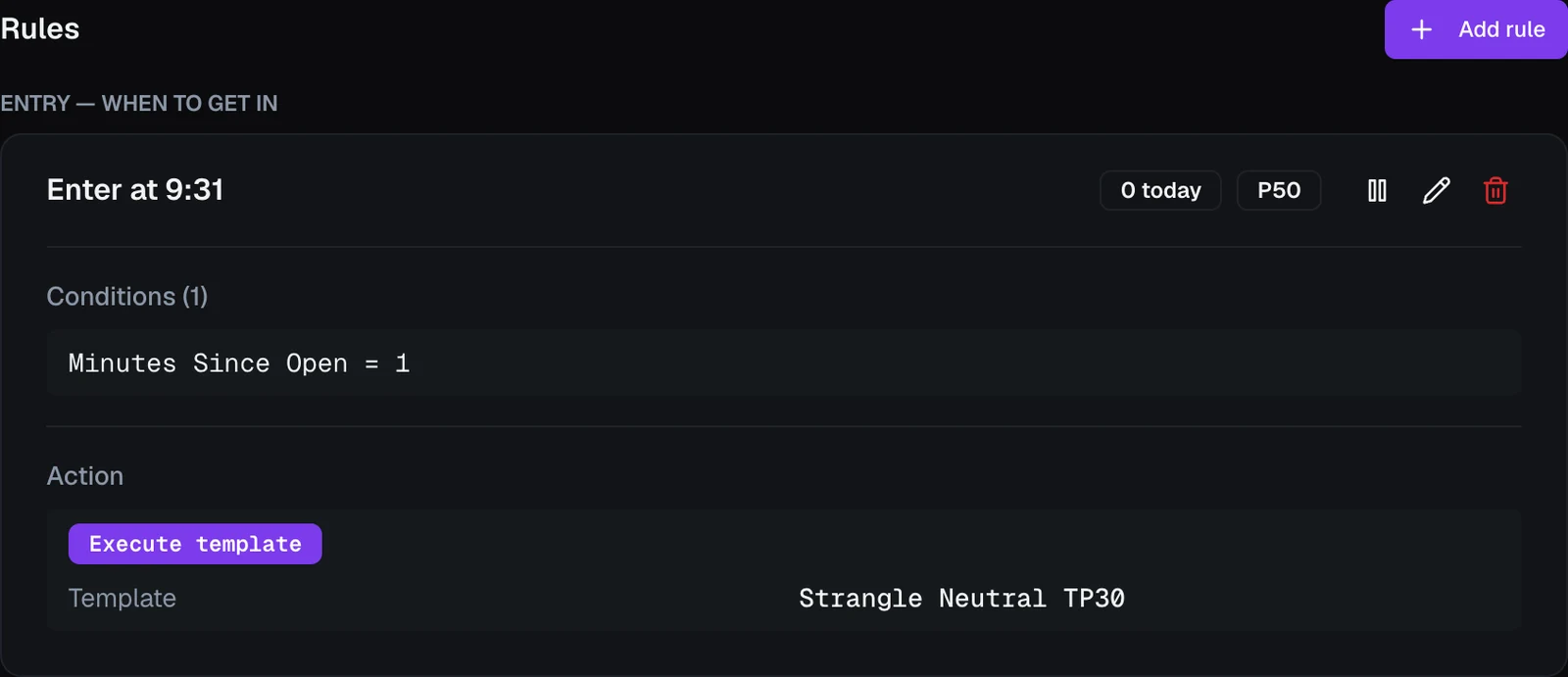
Each card shows the rule's name and that badge, its priority grade (Critical, High, Normal, or Low), and how many times it has fired today in your current mode. A log only badge marks a rule that records without acting, an off badge marks a paused one, and pending shows while an action is in flight. The card's controls pause/resume, edit, and delete the rule. Its Conditions and Action(s) sit below; a rule with no conditions reads Never — no conditions, because a rule with nothing to fire on never acts.
Important
Rule changes are part of the strategy's draft. Adding, editing, pausing, or deleting a rule here takes effect only when you click Save strategy at the bottom of the sheet. Close the sheet without saving and VolNinja asks whether to Discard your changes.
Anatomy of a rule
Add rule (or a card's pencil) opens the Create Rule sheet (Edit Rule for an existing one): a Name, an optional Description, the Conditions, the Actions, and a set of gates that govern how and when it fires. Create Rule (or Update Rule) puts it into the strategy's draft.
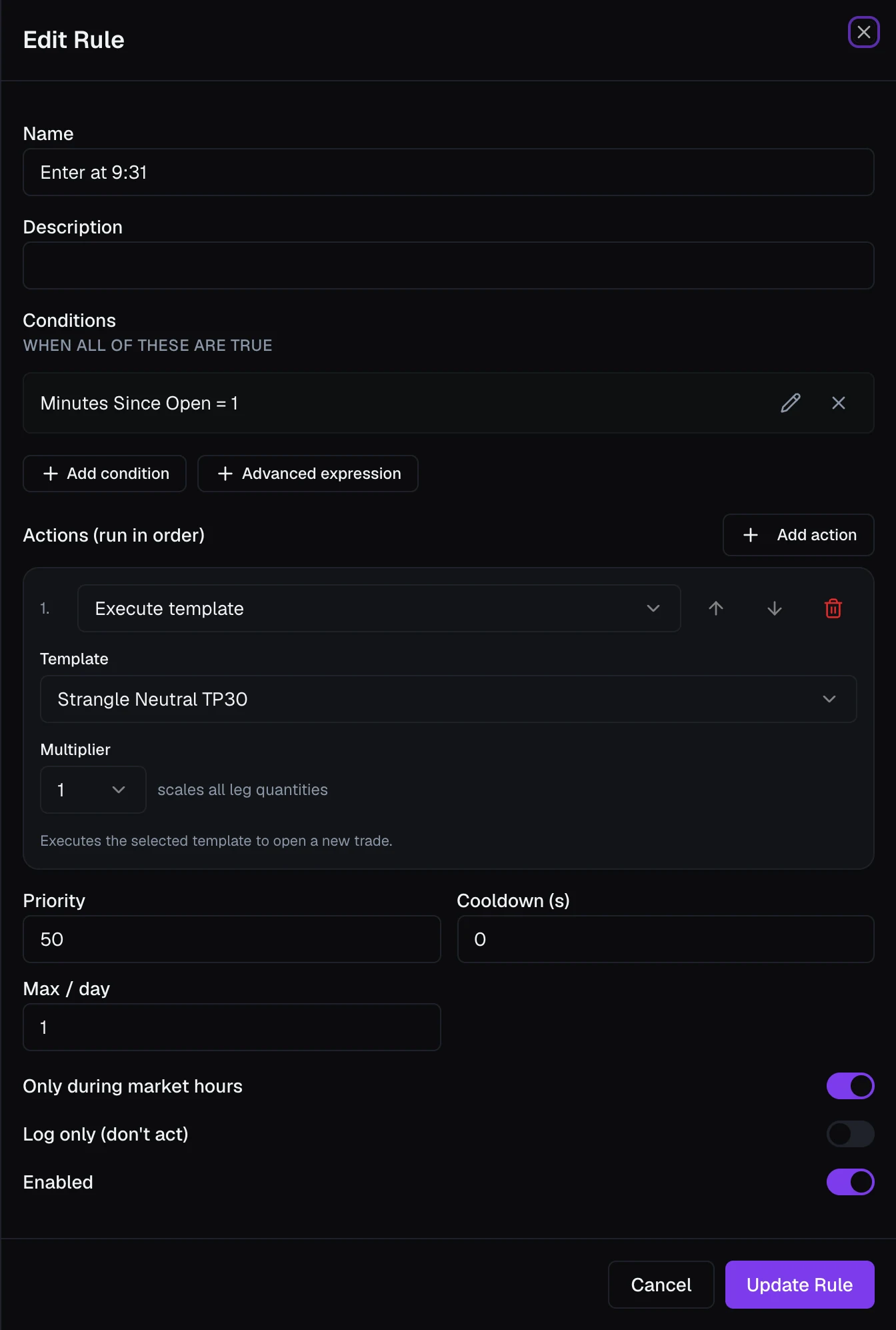
The Conditions use the shared editor at strategy scope, so alongside market and account fields you can compare against your strategy's variables (my.*, global.*, and agg.*) right in the picker. See the Condition Field Reference for what a strategy can watch.
Actions — one rule, several steps
Under Actions (run in order), a rule can hold more than one action; they execute top to bottom, and you reorder them with the arrows. Each action starts once the one before it has finished — for a close, when the positions are closed; for an entry, when it filled; for a variable, pause or enable/disable, as soon as it runs. So Close positions, then Execute template closes first and opens the new trade only after; Execute template, then Set variable counts the entry only once it has filled; Close positions, then Pause strategy keeps retrying the close until it lands and pauses after. A rule places orders only while its condition holds: once the condition turns false, no order is placed or retried, but a close that is still working is waited for, and a variable, pause or enable/disable whose turn has come still runs. Want two things at once? Put them in two rules — rules in a strategy are checked together, so both fire on the same check. Add action appends one from this set:
- Execute template — open a template to put a trade on. You choose the Template and a Multiplier that scales every leg's quantity (see below). This is the entry action.
- Close positions — close matching open positions. You choose Among my positions or all positions, an Execution algo that decides how the closing order is worked (it starts on Market; see Execution Algos), and an optional Filter for which positions. A filter with no conditions closes every position in scope.
- Set variable — set a
my.*(private) orglobal.*(shared) variable (see below). - Enable rule / Disable rule — switch another rule on or off, in this strategy or any other. A rule can disable itself, which is how you build one-shot behavior.
Each action shows a short hint describing what it does.
Sizing an entry: the Multiplier
An Execute template action's Multiplier doesn't have to be a fixed number. Four buttons choose how it's set:
- Value — a plain count from 1 to 10.
- Variable — one of the strategy's number
my.*variables, whether set by actions or calculated. - By steps — a steps table, so size can rise or fall through the day without a separate rule for each level.
- Formula — any number formula, such as
2 * my.base, typed in the formula box.
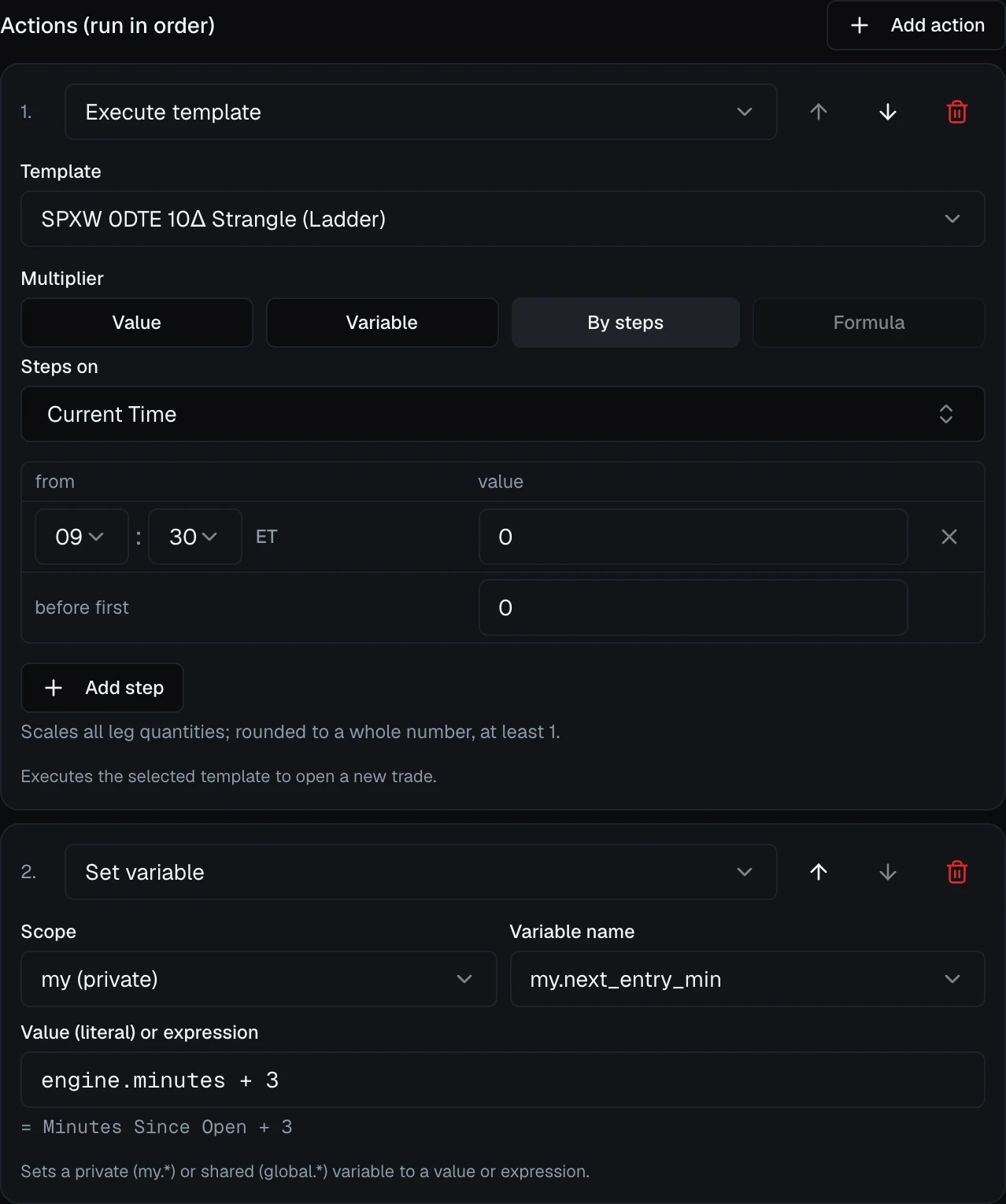
Whichever way you set it, the result is rounded to the nearest whole number (halves round up) and must come out to at least 1. If it can't be worked out (an unknown variable or step input, or a result below 1), the rule places no order and logs an error instead of a fill. A multiplier set as a Variable, By steps, or Formula shows on the rule card as an expression, since there's no single number left to edit there.
Switching to Formula carries the current multiplier over: from Value, the number, selected so typing replaces it; from Variable, the variable's name. A steps table can't be carried over, so Formula is unavailable while By steps is selected. Once you're editing a formula, the control stays on Formula until you click another mode button, and the rule can't be saved until the formula is valid.
Setting a variable's value
A Set variable action has a Scope (my (private) or global (shared)), a Variable name picked from the variables you've declared, and a Value (literal) or expression. Only variables that are Set by actions are offered; a calculated variable always takes its value from its own formula.
For a number variable, the value is the same formula box used everywhere else, so my.entries_today + 1 gets autocomplete and a plain-language check, and the rule can't be saved until that check passes. A string or bool variable takes plain text, such as "risk_off" or true. See Strategy Variables.
Gates — how often and when a rule fires
Below the actions, several settings govern firing:
- Priority — a grade (Critical, High, Normal, Low) setting the order this rule is checked among the strategy's rules: highest grade first and, within a grade, by name. A grade decides order only; it never interrupts an action already in progress.
- Cooldown (s) — the minimum number of seconds between firings, measured from the end of the previous firing (when its last action completed: an entry filled, a close finished). A firing whose action fails keeps retrying and does not start the cooldown.
- Max / day — a cap on completed firings per day; leave it blank for unlimited.
- Only during market hours — restrict the rule to regular trading hours. It starts switched on.
- Log only (don't act) — check the rule and record when it would have fired, but take no action.
- Enabled — turn the rule off without deleting it (the same as the pause control on its card).
A firing that doesn't finish doesn't count against you. If a rule's conditions stop holding before its actions have taken effect, the firing is abandoned: it doesn't use up a Max / day slot and starts no cooldown, so the rule is free to fire again the next time its conditions come true. You'll see it marked Abandoned in the event feed.
Tip
Log only is the safest way to try a new rule. Turn it on and the strategy records in its event feed every time the rule's conditions come true, without opening, closing, or changing anything. Confirm the rule fires when you expect, then let it act.
Strategies themselves run in the same order: highest grade first, then by name. You set a strategy's grade in its Basic Information; see Strategies Overview.
Reaching beyond the strategy — with care
Strategy actions are not limited to this strategy's own trades. Close positions set to all positions can close trades other strategies opened, which is why the editor warns This can close other strategies' trades. Enable/Disable rule can reach rules in any strategy.
Warning
An enabled strategy runs these actions on its own. A rule that closes all positions, or toggles rules in other strategies, changes more than the strategy in front of you, and in LIVE mode it does so with real money and no confirmation. Build and prove these rules in Paper first, and use Log only while you're still verifying. See Paper vs live.
Watching rules run
To see a running strategy's rules, their counts, and every firing with the reason it fired, see Monitoring a Strategy.