
Troubleshooting & FAQ
Most problems in VolNinja show up somewhere visible: a banner across the top of the app, a takeover screen, or a row in System Status. Read those first; each message below comes with its cause and its fix.
Start here: read the indicators
Three places tell you almost everything.
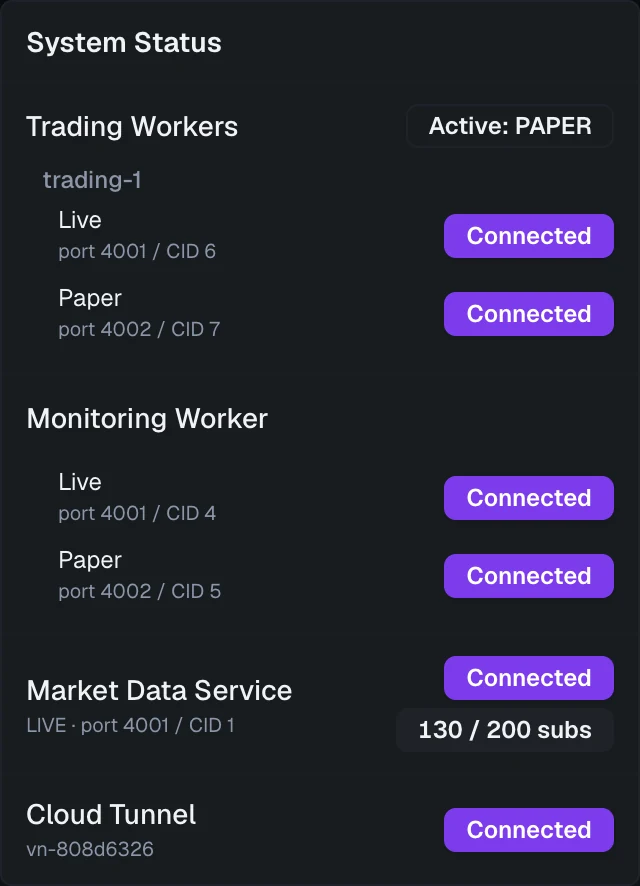
System Status, behind the health pill in the header, is the first thing to open. It lists every part of VolNinja and whether it's connected: Trading Workers and the Monitoring Worker (each with its live and paper connection), the Market Data Service with its Data health pill and the count of option quotes it's streaming against your line budget, and the Cloud Tunnel that carries remote access. When something is down, a Reconnect button appears at the bottom. That alone fixes many transient problems.
The banner strip at the top of the app is the second. VolNinja tells you there when trading is paused, when the connection to your account has dropped, or when an update is waiting. Each has its own wording, and each maps to a fix below.
The VolNinja window (menu bar or system tray) is the third, on the desktop app. Engine green means VolNinja itself is running; the IBKR rows show your broker connection. With a Docker install, volninja status answers the same question.
"Can't reach your machine"
A full-screen message saying Can't reach your machine means the cloud can't talk to your VolNinja install. It shows when it was last connected, and it reconnects on its own the moment your machine is back. All you have to do is fix the cause:
- The machine is asleep, off, or offline. This is the usual one. VolNinja only runs while the computer it's installed on is awake and online.
- VolNinja isn't running. Check that Engine is green in the VolNinja window, or start it from there. Quitting VolNinja stops it; closing the window doesn't.
- The device was un-paired. If you revoked it from your account, pair the machine again. See Pairing a device.
A related but narrower message, Tunnel disconnected — reconnecting…, appears as a banner while your app is open. Order actions are disabled until it clears: VolNinja won't let you fire an order it can't confirm.
Trading is paused
These banners all mean VolNinja has stopped acting on your behalf, and each names its own cause.
| What you see | What it means | What to do |
|---|---|---|
| Connect your install to activate trading | This machine isn't linked to your account | Pair it |
| Connecting to your account… | Normal right after starting | Wait a moment |
| Your subscription is inactive | Trial or subscription lapsed | Renew from Billing |
| Can't reach your account | The link to the cloud is down | Check your internet; it retries on its own |
| Update required | Your version is below the supported minimum | Update |
Two billing banners can also appear, one line across the top of the app:
- Payment failed — update your payment method… (amber). Your last payment didn't go through and you're in a grace period: everything keeps working for now, but automated stop-losses and profit targets stop when the grace period ends. Update your payment method from your account.
- Subscription ended — reactivate to resume trading (red). Order entry is off until you click Reactivate and renew. Manage anything you hold directly at your broker in the meantime.
Important
A required update pauses only the opening of new positions; you can still close and manage everything you hold. The other three are broader: while trading is paused, VolNinja can't act on your positions at all, so manage anything urgent directly at your broker until it clears.
IBKR won't connect
Connecting IBKR has the checklist (Gateway or TWS running and logged in, the API enabled, the right ports in Settings → Connections). Two things it doesn't cover:
A disconnect at the same time every day is expected. IBKR restarts its Gateway on a daily schedule, which drops every connection to it, including VolNinja's. VolNinja reconnects itself afterwards. If your disconnects cluster around one time of day, that's what you're seeing. You can change the restart time in Gateway's own settings.
A red banner naming positions it can't manage ("N positions can't be managed — the gateway for that mode isn't connected") means you hold positions in an account whose Gateway or TWS isn't running. VolNinja can't see or act on them until it is. Start the Gateway for that mode (live or paper), or correct its port in Settings → Connections.
Quotes look stale or missing
- Everything shows dashes outside market hours. Expected. Live quotes stop when the market is closed; the layout stays put and figures return at the open.
- "Options not subscribed" in the market strip means VolNinja isn't streaming that contract, usually because coverage is aimed elsewhere. Widen it in Settings → Market data, or check your usage in System Status.
- The Data pill isn't Full. In System Status, the Market Data Service's Data pill says how well live data is keeping up. Thinned or Degraded means some quotes refresh more slowly, but entries and exits still use live data. Impaired points at the IBKR connection, a pacing penalty, or a missing market-data subscription at IBKR. A line count at or near your budget is normal on its own; VolNinja spends spare lines on purpose. To carry more, buy more lines from IBKR and raise your budget to match. See System Status and data health.
VolNinja is using a lot of CPU
Three settings own nearly all of VolNinja's continuous work. Full detail in Settings.
Settings → Market data — every strike VolNinja keeps live is a quote stream it re-prices continuously. Lower Chain coverage (% of spot) and Trade-range half-width, and switch off Keep hot OTM bands for any underlying you aren't trading. That's usually the biggest single reduction, since it widens live coverage to fill your budget.
Settings → Simulation — the background risk calculation. Start with Only run while viewing: with it on, the loop runs only while a page showing risk figures is open, so it costs nothing when you're not looking. Beyond that, raise Target cadence (s) so it runs less often, lower Target paths and Maximum paths, switch off Background simulation for the mode you aren't trading, and turn off Run outside market hours if you don't need risk figures overnight.
Settings → Trading → Rule evaluation — how often your rules are checked, per mode. Checking every second is the default; a slower setting costs less CPU. Slow down Paper first: in Live, a slower setting delays every exit the app enforces itself by up to that long. See Rule evaluation.
The cost of the first two is small: risk numbers refresh less often and are slightly coarser, and fewer strikes carry live quotes.
Tip
Closing the browser tab won't help: the work happens in VolNinja on your machine, not in the page. On the desktop app, it's the VolNinja engine you'll see in Activity Monitor or Task Manager.
Something traded and I didn't expect it
Open the position and read its Activity tab. It lists every episode in order with the reason attached: which rule or strategy fired, the exact condition that matched, the orders that went out, and how they filled. That answers "why did this happen?" better than any log. See Position details.
A position says "Needs review"
A red Needs review badge on a position means VolNinja's record of it may not match what your broker holds, for example after an order that only partly filled or a fill VolNinja couldn't confirm. Its rules are still acting on it.
Compare the position with your account at Interactive Brokers. Once you've checked it, open the position and click Clear beside the badge. Clearing only records that you've looked; if VolNinja detects the same mismatch again, the badge comes back. If it keeps returning, send support the position's Activity tab.
A position is stuck as pending
A position that stays PENDING OPEN is one whose entry order never resolved. If it's still sitting there and you don't want it, the ⋯ menu offers Cancel Position. Beyond that, don't force it: open the Activity tab to see how far the entry got, and send support what it shows rather than correcting the record by hand.
The desktop app
- Engine never turns green. The very first start is the slowest, because VolNinja sets up its own private database; give it a minute. After that, use the restart button on the Engine row of the VolNinja window, and Open Logs (under More) if support asks.
- Check for Updates… is greyed out in the tray menu and reads (pair first). Updates come through your subscription, so the machine has to be paired first; clicking Check for Updates… in the window takes you to pairing.
- An update didn't go through. Updating VolNinja covers each case.
FAQ
Does VolNinja trade while my computer is asleep? No. It runs on your machine, so it only works while that machine is awake and online. For hands-off trading around the clock, run it on a small cloud server. See Advanced: Docker & VPS install.
Does closing the VolNinja window stop it? No, closing only hides it. Quit stops the engine, and nothing is monitored until you start it again.
Can you see my positions? No. Your trades, orders, and IBKR connection stay on your machine. The cloud holds your account and billing details and carries requests back and forth so you can reach the app remotely. See How VolNinja works.
What happens if my subscription lapses? Trading pauses and you'll see the Your subscription is inactive banner. Your data is untouched on your machine, and renewing restores everything.
What happens if my internet drops mid-trade? Any rule resting at Interactive Brokers keeps working regardless — that's what a standing order is for. Rules that VolNinja enforces itself need it connected to your broker, so they stop until it's back. A position's Rules tab tells you which of yours are which.
Contacting support
If none of the above fits, email support@volninja.com.
Because your trading data lives only on your machine, support can't look anything up; they only have what you send. Include as much of this as you can:
- What you saw, in the app's own words, and roughly when.
- A screenshot of the screen in question. When a trade is involved, the position's Activity tab is the most useful one.
- Your VolNinja version, shown in the footer at the bottom of the trading app.
Support may also ask for your logs; Open Logs, under More in the VolNinja window, shows you where they are.