
Templates Overview
A template is a reusable blueprint for a trade. It holds the trade's legs (what to buy or sell, and how the strikes are chosen) together with the rules that open and manage it. Build a template once and you can put the same trade on again and again: run it yourself in a couple of clicks, or let a strategy run it automatically on your behalf.
The Templates screen is where your templates live and where you act on each one. Building one is covered in the articles this page links to.
Finding your templates
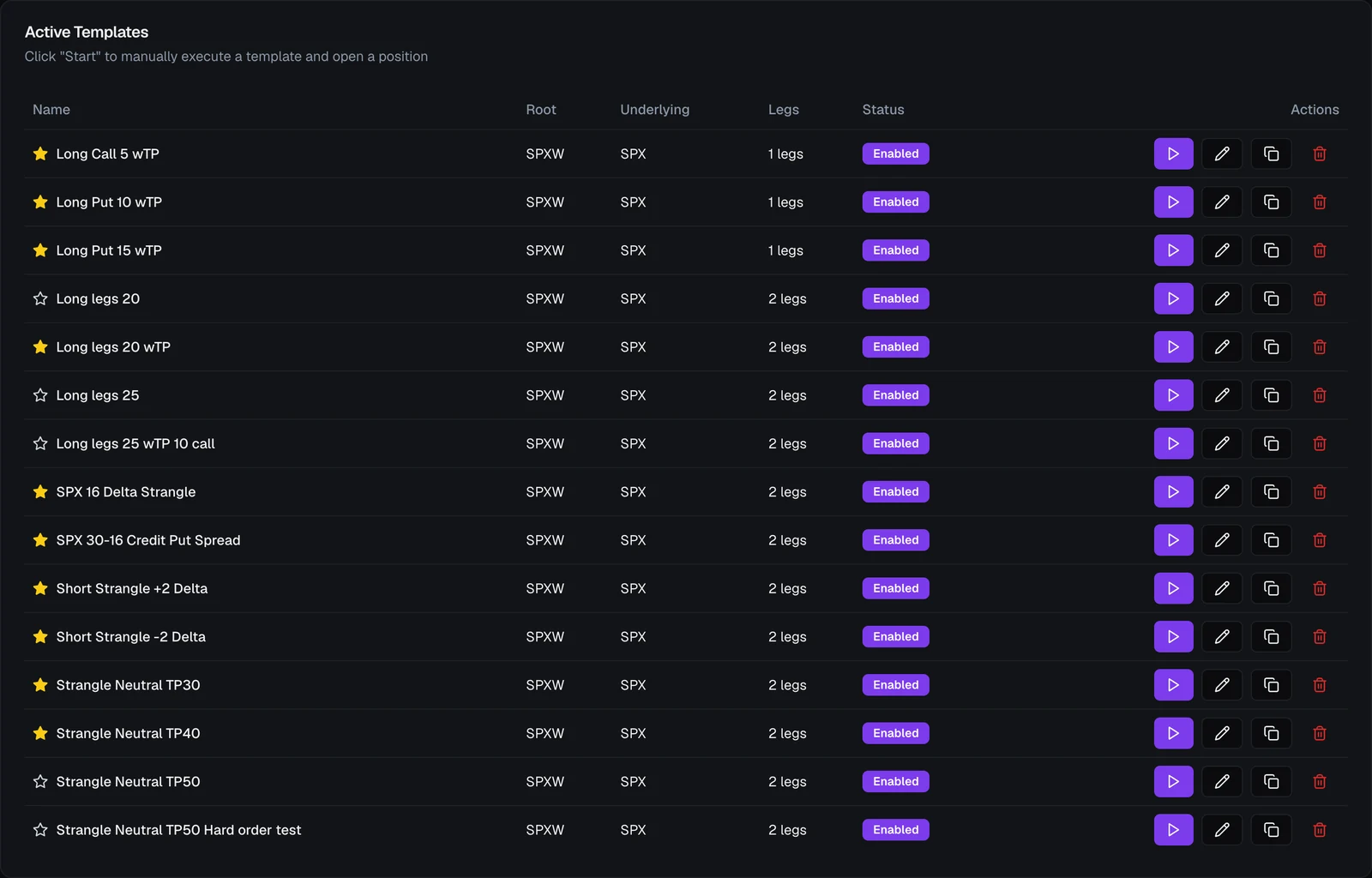
Open Automation → Templates from the top navigation. The page lists everything you've built under a single Active Templates card, with a New Template button at the top right to start a fresh one.
Reading the list
Each template shows as a row (or, on a phone, a card) showing everything you need to recognize it:
- ★ Favorite — the star at the start of the row. Click it to mark a template as a favorite; click again to unmark.
- Name — what you called it.
- Root and Underlying — the instrument the template trades.
- Legs — how many legs the trade has (a single option, a two-leg spread, a four-leg condor, and so on).
What you can do from a template
Every row has the same actions:
- Execute (the ▶ button) — run the template now to open a position.
- Edit (pencil) — open the template to change its legs or rules.
- Clone (copy) — duplicate the template as a starting point for a variation, leaving the original untouched.
- Delete (trash) — remove the template. VolNinja asks you to confirm first. Each open position keeps its own copy of the template it was opened from, so deleting a template leaves your existing positions and their rules alone; you can no longer execute it to open new ones.
Executing a template
Click a template's Execute button (the ▶) and VolNinja shows an Execute Template confirmation. It lists the template name and every leg, each with its buy/sell, quantity, call or put, how the strike is chosen, and days to expiry. It also has a Multiplier that scales all leg quantities at once, so you can put on twice or ten times the base size without editing the template.
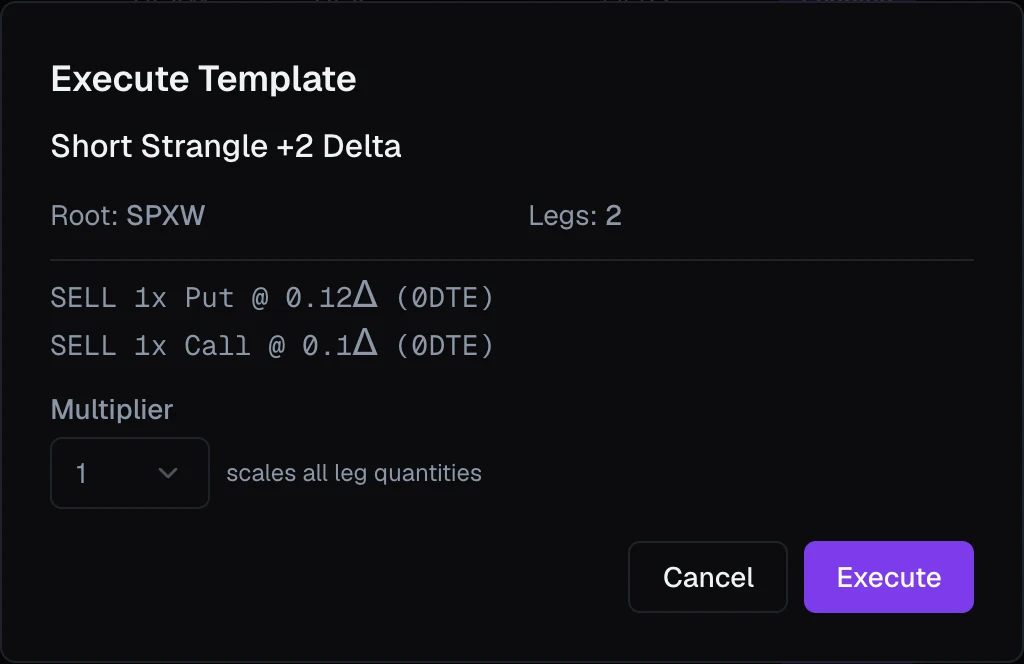
Nothing is sent until you press Execute. Cancel and the template is untouched.
Warning
Pressing Execute places a real order to open a position. In LIVE mode that uses real money, so never run a template as a test while you're live. When you want to try a template safely, do it in paper mode; see Paper vs live. For the full mechanics of opening and closing, see Opening & closing positions.
Favorites
Marking a template with the star makes it a favorite, which puts it within one click across the app:
- On your Dashboard, favorites fill the Quick Execute card, so you can execute any of them in one click without opening the Templates page.
- In the Risk Lab, favorites are the templates you can add to a what-if scenario to test a hypothetical trade before you place it.
You can also group favorites into named categories so a large collection stays organized in Quick Execute. Star the handful of setups you reach for most, and leave the rest unstarred to keep the quick surfaces uncluttered.
How templates feed strategies
You run a template by hand; a strategy runs it for you. It watches the market and your positions and opens the templates you've given it whenever its own rules say so, with no clicking from you. Any template you can execute here can also be handed to a strategy. To stop a strategy opening a template, pause the strategy or switch off the rule that opens it; the template itself has no on/off switch. See Strategies Overview for how that fits together.
What's inside a template
A template has two parts, each with its own article:
- Legs — the options the trade is made of, and how each strike is selected. See Template Legs.
- Rules — how the template opens, manages, and exits its positions. These are built on the shared rules & conditions model: see Entry Execution for how it opens and Management Rules for how it manages and exits, plus Where Rules Run for which of those rules end up resting at your broker.
For a step-by-step walkthrough that puts all of this together, start with Building a Template.