
Management Rules
Management rules are how a template looks after a position once it's open: taking profit, cutting a loss, rolling a leg. You attach them to the template once, and every position opened from that template carries the same rules and runs them automatically, without you watching the screen.
A management rule is built with the same editor used everywhere in VolNinja: an action, an optional P&L target that can rest at your broker, and the conditions around it. What follows is specific to template management rules — the actions they can take, their priority, and how often they fire. Conditions themselves (fields, operators, the simple and advanced editors) are covered in Rules & Conditions.
Where rules live
Open a template for editing (the pencil on any row of the Templates list) and scroll to the Rules section. Each rule you've added shows as a card; Add Rule creates a new one. A template with none added yet reads "No rules."
You write one list. VolNinja compiles each rule to run where it can — resting at your broker, where it survives the app being closed, when its conditions and action allow it, otherwise in the app, which needs VolNinja running. See Where rules run for what decides that and how to read it on a live position.
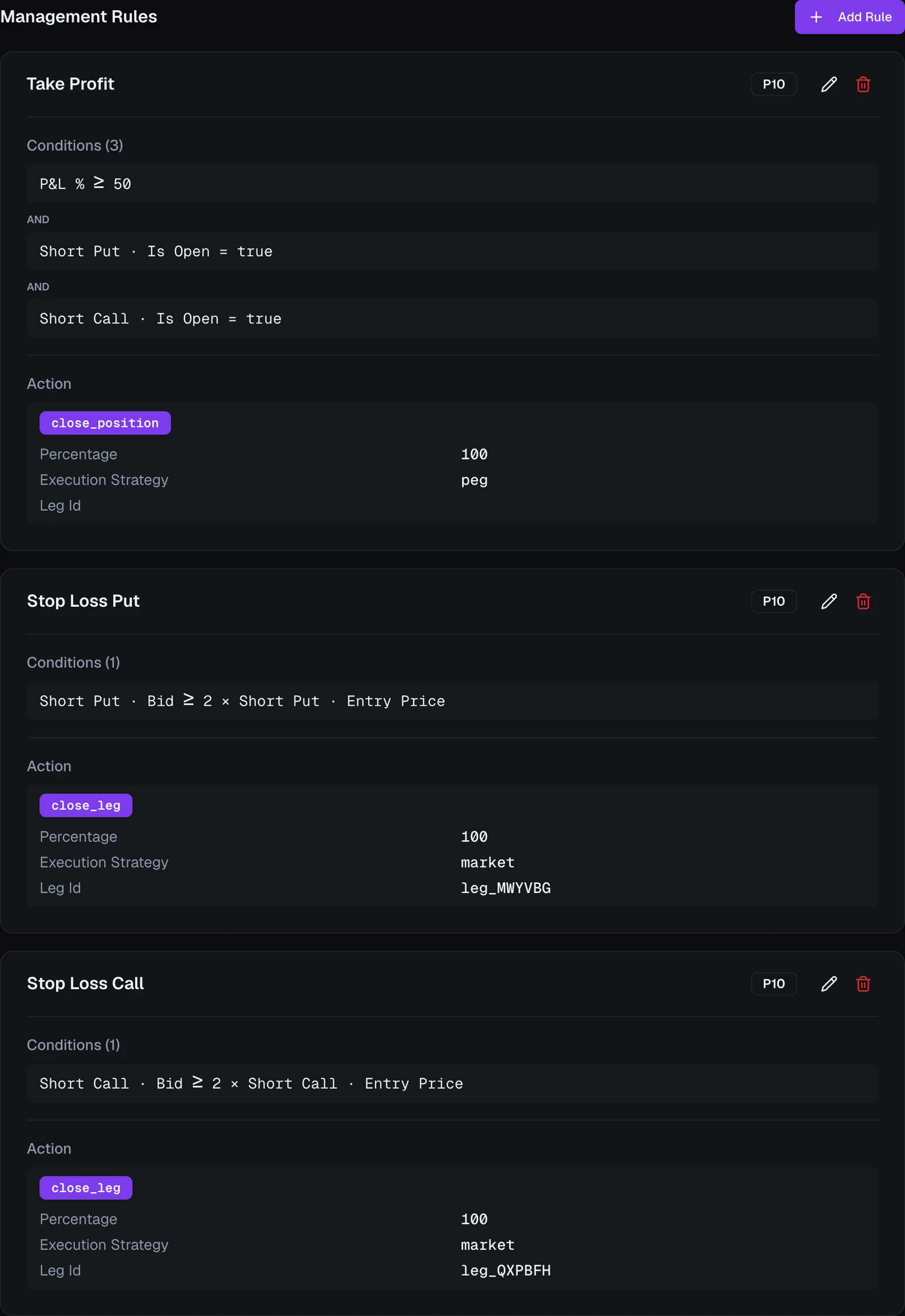
Each card summarizes one rule in plain language: its name, a priority badge naming its grade, its P&L target if it has one, the conditions that must hold, and the Action that runs. The conditions are headed While on a rule with a target — the target fires, the conditions only decide when it is allowed to — and When on one without, where the conditions are the trigger.
Building a rule
Add Rule (or the pencil on a card) opens the Create Rule sheet. Above the condition editor sit the fields that define a management rule:
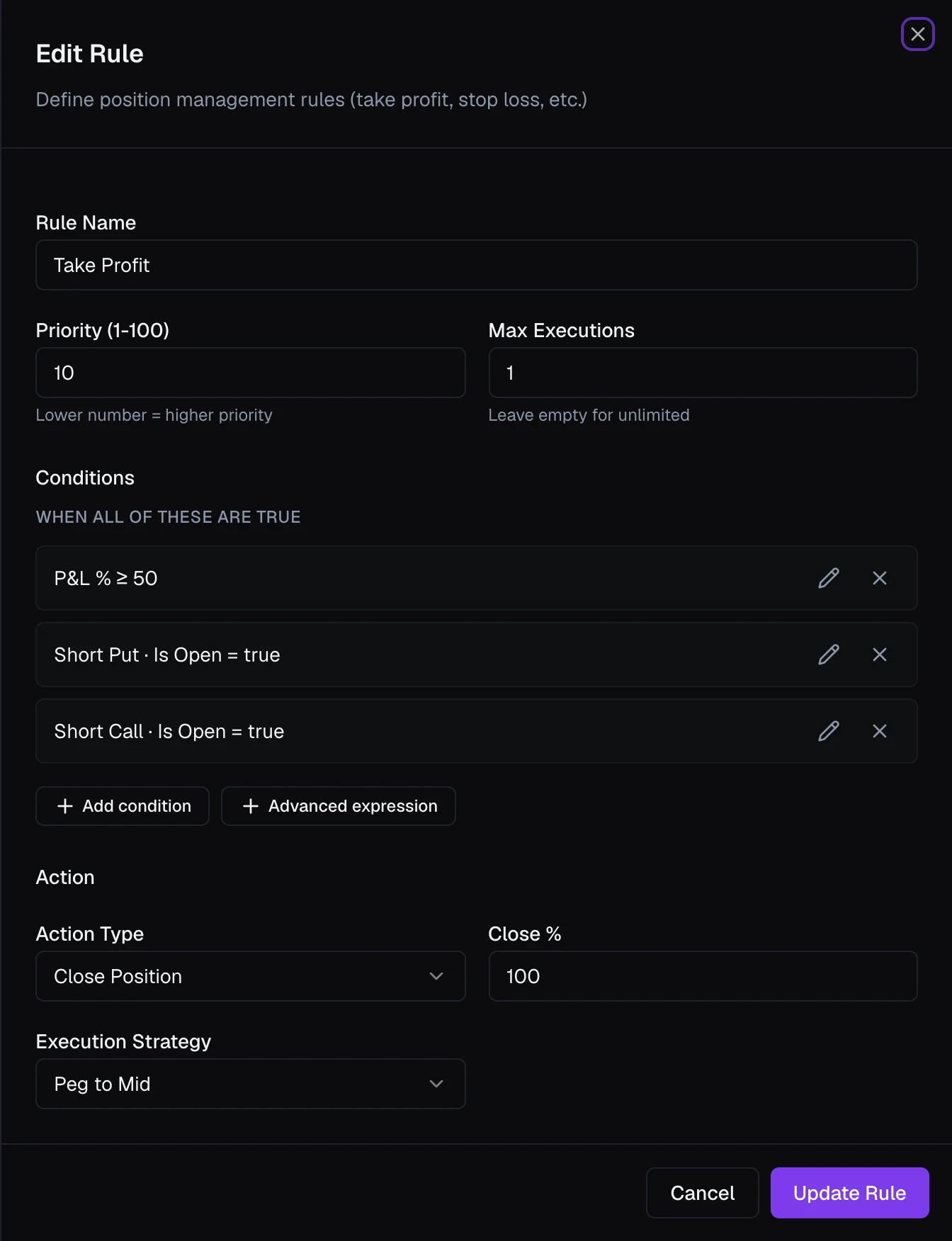
- Rule Name — what you'll recognize it by, such as Take Profit at 50%.
- Priority — a grade: Critical, High, Normal, or Low. Rules are evaluated highest grade first, and a firing rule can interrupt a close that a lower-grade rule is still working. Rules sharing a grade never interrupt each other.
- Max Executions — how many times this rule may fire on a position. A take-profit that closes the whole position needs to fire only once; leave it empty for unlimited.
- Action — what the rule does: Close Position, Close Leg, or Roll Leg. It comes before the target, because the target's scope follows from it.
- P&L target — the one profit or loss level this rule can rest at your broker. Pick Profit or Loss, type a number, and choose % (of the initial premium) or $ (per lot); the row reads the result back as a sentence, such as Take profit at 50% of initial premium or Stop loss at $400 per lot. A lot is one copy of the template's legs at their ratios, so the dollar amount means the same thing whether the position is a 1-lot or a 4-lot. Leave it empty and the rule runs in the app instead — which is right for a time-based exit or a roll. See Where rules run.
- Conditions — the shared editor described in Rules & Conditions. With a target set, these are the gate: the heading reads While these conditions hold, and an empty list means the P&L target alone decides. With no target they are the trigger, headed When these conditions are met. A close rule with neither is refused at save with "Set a P&L target or add a condition so this rule has something to fire on." A Roll Leg rule with no conditions does save, but it never fires — its card reads Never — no conditions until you add one.
What a management rule can do
The Action Type picker sets what happens when the conditions are met:
- Close Position — close the whole trade. There is no percentage to set: a close closes the position. (Saved rules still show a Percentage of 100 on their card; it is a record of that, not a choice.) To take profit in stages, split the entry into tranches (below) and scope a rule to each — that way every stage keeps its own broker-side protection.
- Close Leg — close a single named leg of a multi-leg position; you pick Leg to Close. A percentage target on this action measures that leg's initial premium, and the editor names the leg in the sentence so there is no ambiguity. Without a target, if the conditions watch a different leg than the one you close, the editor warns you: a leg stop normally watches its own leg, and a rule that watches another one runs in the app rather than at the broker.
- Roll Leg — close a leg and reopen it at a new strike, without exiting the position. See Rolling a leg for the solvers and how a roll executes. A roll has no P&L target — the strike is chosen against the market when it fires, so there is nothing fixed to rest.
All three actions place orders, so each carries an Execution algo in the Execution section that sets how the order is worked — straight to market, or a limit order walked toward the market over a set number of attempts. A new rule starts on Market. Pick another built-in, or choose Custom… to build your own: leave Save to library unchecked and it belongs to this action only; check it and it joins your shared library for any rule or template to reuse. See Execution algos.
Calling off an exit that is still working
A limit algo can spend minutes working its order, and the market can change its mind in that time. Stop execution if conditions lapse, under the algo in the Execution section, says what to do about that: while this rule's own order is still working, VolNinja keeps watching the conditions that fired it, and if they stay false for the whole of Conditions false for (seconds), it calls the order off. The position stays open and the rule stays armed, ready to fire again when its conditions come back. If the conditions turn true again before the window is up, the window resets and the order keeps working — the option is deliberately not a hair trigger on one adverse tick.
A three-second window is a sensible starting point. It is most useful on a patient algo that rests rather than chases: an exit worth taking at the mid is not necessarily worth taking once the reason for it has gone.
The switch is greyed out when the action's algo is Market — which is every new rule until you pick something else — and says so. A market order is one order that fills or doesn't; there is no working order to call off, so there is nothing for the setting to do. Choose a limit algo and it becomes available.
Taking profit in stages: tranches
To scale out of a trade — take half off at one target and let the rest run — split the entry into tranches. In the template editor, the Tranches section splits the entry into weighted sub-positions, each closed and managed independently by rules scoped to it.
Split into tranches starts you with two equal tranches; Add tranche adds more (up to ten). Each row has an id, an optional Name, and a weight; a line underneath shows what the weights work out to.
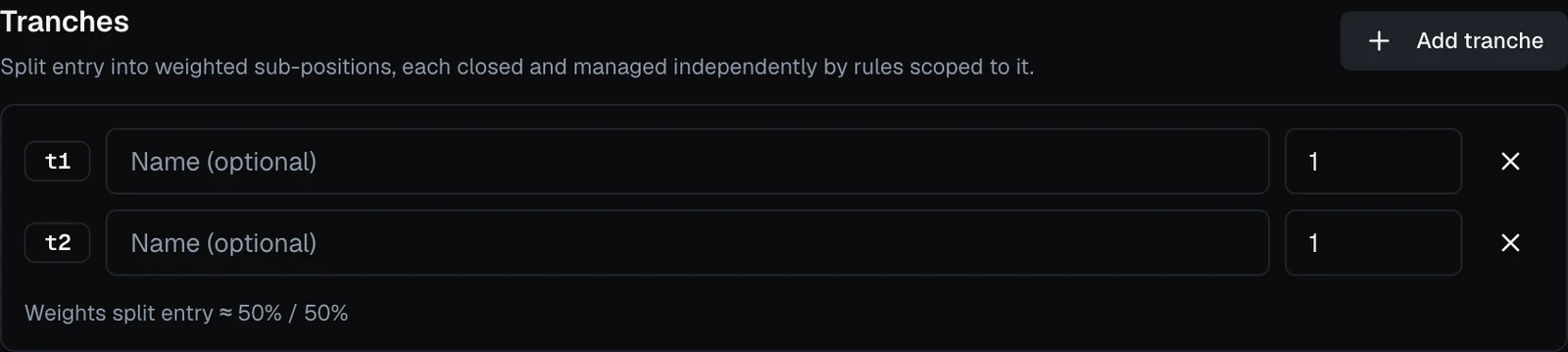
Once a template has two or more tranches, each rule gains an Applies to picker: All tranches (the default) or one named tranche. The rule card doesn't show the scope, so put the tranche in the rule's name (Take profit 30% — Front half) if you want to read it at a glance. So a Profit 30% target scoped to the first tranche and Profit 60% scoped to the second gives you a two-stage exit — each resting at the broker in its own right — while an unscoped stop-loss protects both.
A tranched template still opens as one order at your broker — you get one fill and one entry price — and VolNinja then splits it into one position per tranche. The positions show together in the positions list so the trade still reads as one trade.
Important
Tranches are whole contracts, so a small entry may not fill every one. Contracts are shared out by weight, any remainder goes to the last tranche, and a tranche that ends up with none is dropped along with the rules scoped to it. On a 1-contract entry split 50/50, the first tranche is dropped and the whole position is managed by the second tranche's rules plus your unscoped ones. Size the entry so each tranche gets at least one contract.
How priority and limits work together
A position can hold several management rules at once (a take-profit and two stop-losses is a common set), so two settings keep them orderly:
- Priority decides which rule is considered first when more than one is eligible in the same moment. Give the rules you least want to miss — your stop-losses — a higher grade, and they will also be able to interrupt a lower-grade close that is still working.
- Max Executions stops a rule from firing more often than it should. A one-and-done exit gets a limit of 1; a rule you want to keep re-checking is left unlimited.
From template to live positions
The rules you set here are a blueprint. When a position opens from the template, it gets its own copy of these rules and begins evaluating them live. From that point you manage each position's rules from the position itself, pausing one or resetting how many times it has fired. See Automating a Position.
Tip
You don't have to keep a rule's resting order out of its own way. When a rule fires, VolNinja withdraws the broker orders the action would invalidate before placing its own, so a take-profit and a stop never both try to close the same position. See Where rules run.
Related settings
- Where Rules Run — how a rule becomes a resting order at your broker, and how to tell which of yours have.
- Execution algos — how a closing order is worked once a rule fires.
- Entry Execution — how the template opens a position in the first place.
- Template Legs — the legs a management rule can act on.
Warning
Management rules act on their own. When a rule's conditions are met it runs its action without asking, and if that closes or opens a trade in LIVE mode it moves real money. Read each rule's conditions and priority before you rely on it, and rehearse in paper first: see Opening & closing positions and Paper vs live.