
Settings
Settings is where you tune how VolNinja connects, how much market data it watches, how often it checks your rules, how hard it works on risk calculations, and how it shows you times. Open it from the avatar menu in the top right.
The page is organized into six sections (Connections, Market data, Trading, Execution algos, Simulation, and Preferences) and shows one at a time. Pick a section from the list on the left.
Important
Your trading mode is not here. Paper versus live is the switch in the header, on every screen. See Paper vs live.
How saving works
Each section is edited and saved on its own. Change a field and the Save button becomes active, with Discard beside it to put everything back. Nothing takes effect until you save.
If you try to leave a section with unsaved edits, VolNinja stops you with an Unsaved changes prompt: Keep editing or Discard. Most changes apply live; only Connections interrupts anything, because new ports mean reconnecting to IBKR.
Connections
Connections is where VolNinja learns which IBKR Gateway or TWS to talk to.
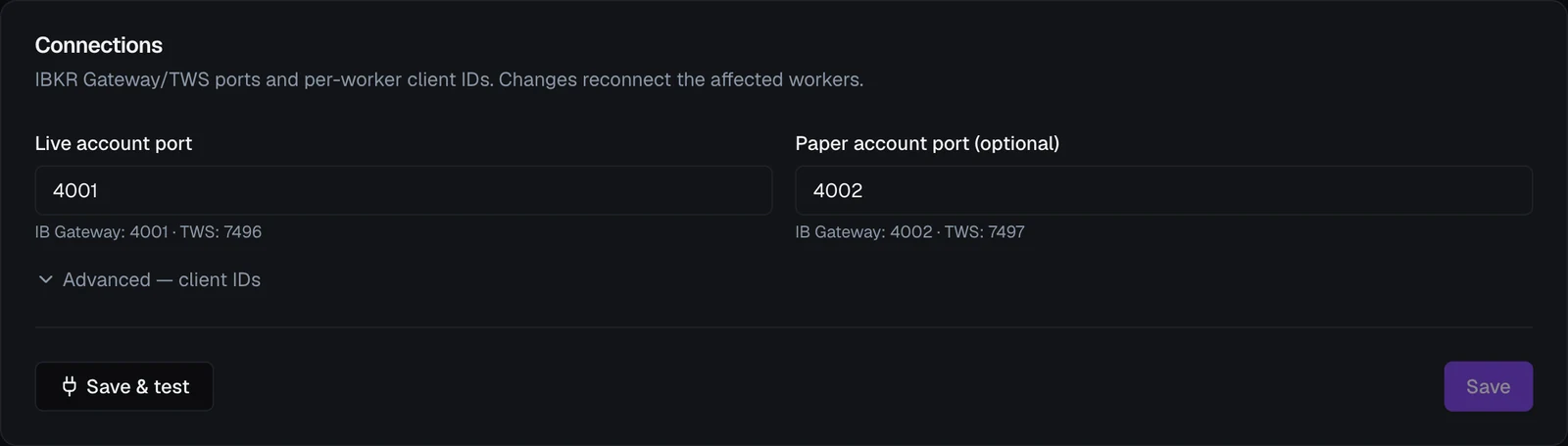
- Live account port and Paper account port (optional) — the socket ports your IBKR connection app listens on. The standard values are printed under each field: IB Gateway 4001 live / 4002 paper, TWS 7496 live / 7497 paper. Setting both lets you keep a paper and a live connection side by side.
- Advanced — client IDs — folded away, and best left alone. IBKR requires a distinct identifier per connection, and VolNinja opens a few; the defaults work unless another program is already using them with your IBKR account.
Save & test saves your ports and then immediately tries the connection, answering with Connected and the mode it reached (for example Connected — paper), or Couldn't connect — is IBKR Gateway running? That's the fastest way to confirm a fix without leaving the page.
Connecting IBKR has the full walkthrough: installing Gateway or TWS, enabling its API, and choosing paper or live.
Tip
If a red banner says some of your positions can't be managed because that mode's gateway isn't connected, this is the section to check: either start that Gateway/TWS, or correct the port here.
Market data
Market data decides how much of the options chain VolNinja keeps live and how far its background snapshots reach. Changes apply immediately, with no restart.
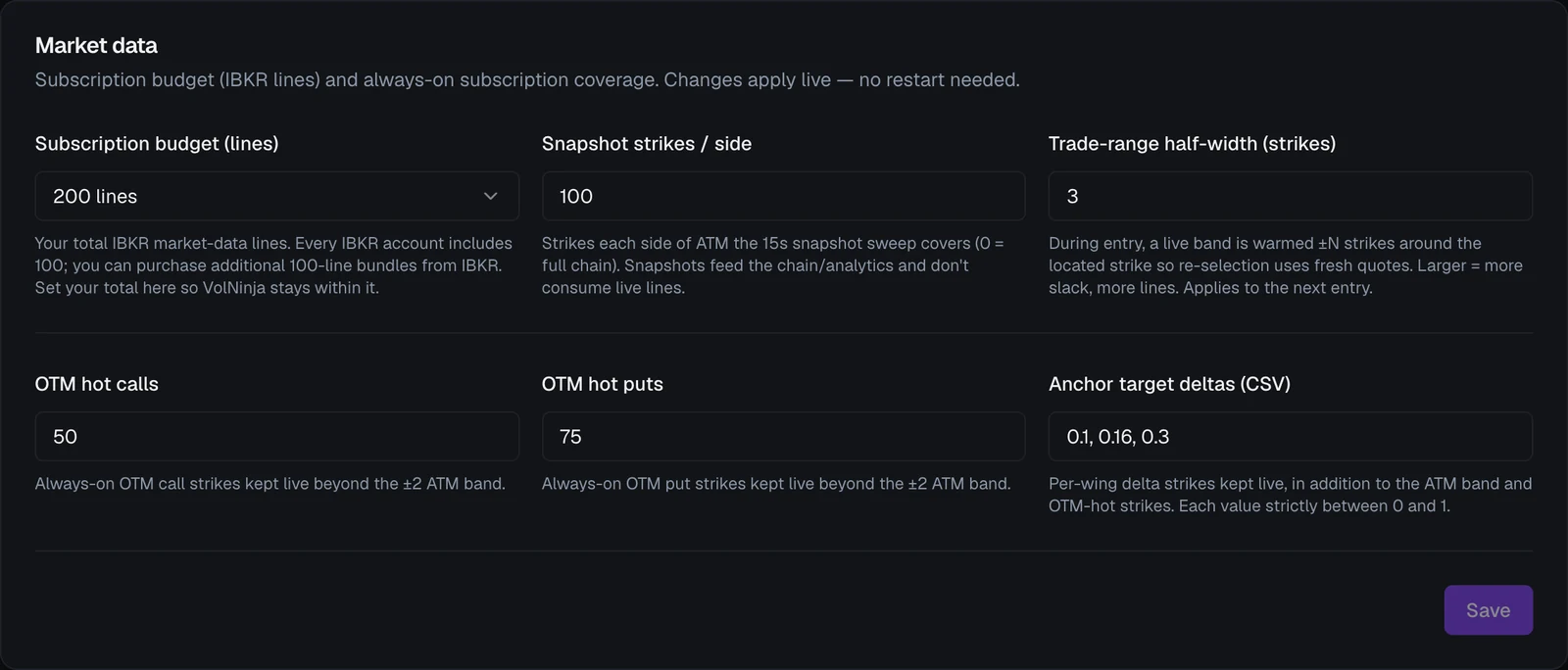
The section has three parts:
- Your line budget — Subscription budget (lines), your total IBKR market-data lines. Set your real total here; it also sets how fast VolNinja may request data from IBKR.
- Live coverage — which strikes stream live quotes out of that budget: Keep hot OTM bands per underlying, Anchor target deltas (CSV), and Trade-range half-width (strikes). Your open positions and working orders always stream; they aren't configurable.
- Snapshot coverage — the background sweep behind the chain and analytics, which uses no live lines: Chain coverage (% of spot) and Wing premium floor (ticks).
What every field does, how the budget is spent, and what happens when you run past it are covered in Market data & subscriptions.
Tip
Every strike VolNinja keeps live is a quote stream it re-prices continuously. If your machine is working harder than you'd like, narrowing coverage here is the first thing to try. See Troubleshooting.
Trading
Two account-wide settings, both applied live: when your trading day rolls over, and how often your rules are checked.
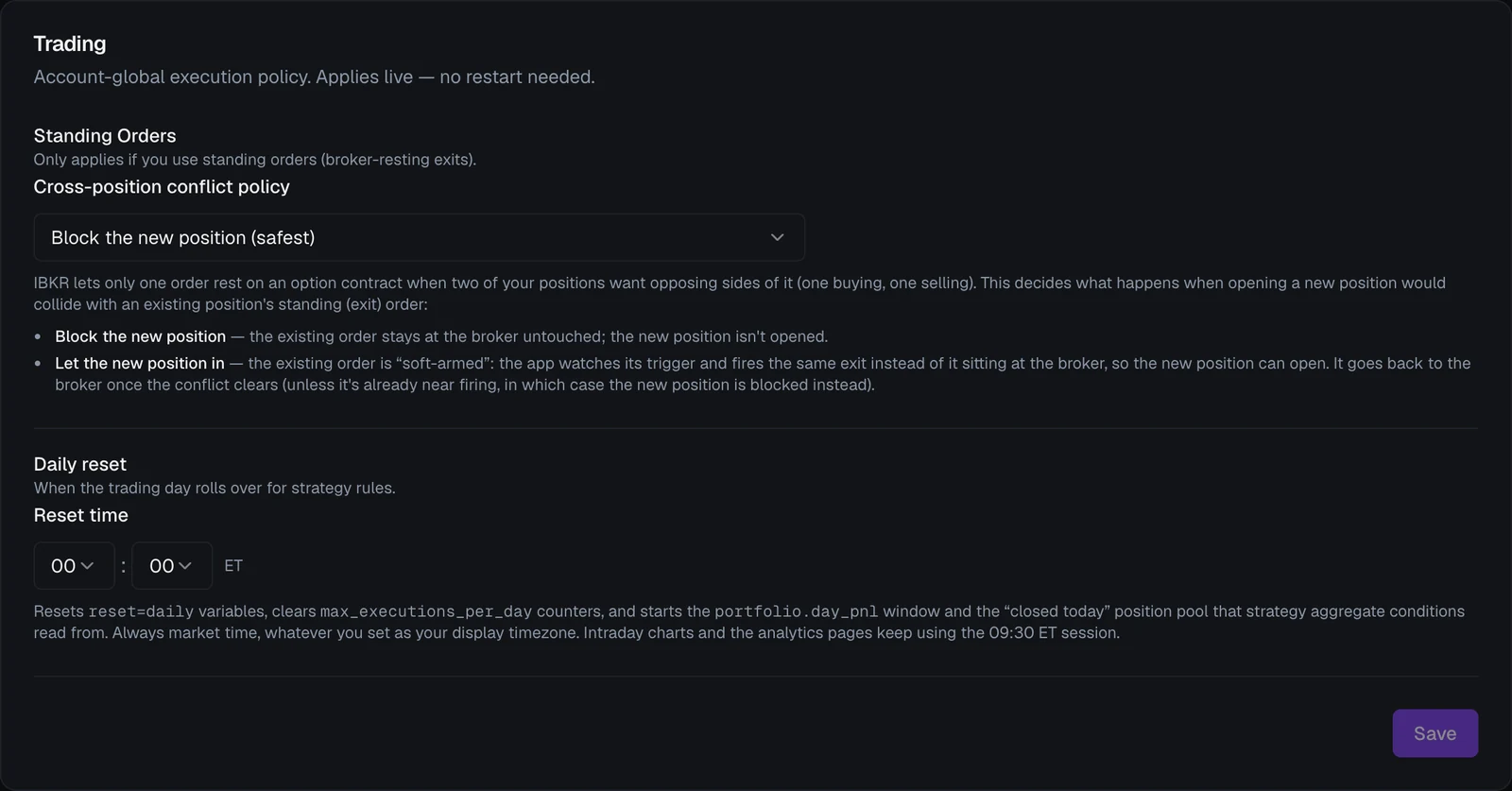
Daily reset
Reset time sets the moment your trading day rolls over, always in market time (ET) no matter what you choose as your display timezone. At that moment, daily strategy variables reset, per-day execution limits start again, and the day's P&L window and the "closed today" pool that strategy conditions read from begin afresh. The analytics pages are unaffected and keep using the 09:30 ET session; the Intraday chart rolls to the next day at 16:00 ET.
Rule evaluation
Check rules every sets how often VolNinja checks your rules against the market, with a separate choice for Live and for Paper: 1, 2, 5, 10, 15 or 30 seconds, or 1, 2 or 5 minutes. The default is 1 second, the fastest reaction.
One setting covers both kinds of rule for that mode: the exit rules on your open positions and the entry rules on your strategies. That makes it a real trade-off:
- This is how often stops and take-profits are checked by the app. At 5 minutes, a stop that should fire at 10:00 can fire at 10:05, at whatever price the market is by then. A condition that's only true for a short window can be missed entirely.
- A slower setting costs less CPU and fewer market-data reads.
A change applies within a minute, with no restart.
Warning
Slowing down Live delays every exit the app handles. Exits resting at your broker aren't affected, because IBKR watches those itself; see Where rules run. If you only need to save CPU, slow down Paper first.
Execution algos
Execution algos is the library of named order-execution configs your templates and rules choose from — how an order is priced, retried, and given up on. The section lists them under Exit Algos and Entry Algos, built-ins alongside anything you've saved: New algo creates one — always a limit algo, since closing straight at market is what the built-in Market already does — the duplicate button on a row makes an editable copy of a built-in, and your own can be edited or deleted here.
Editing a saved algo changes live behavior for every rule and template that names it, so VolNinja asks you to confirm the save. The full reference — what each setting does and which built-in to reach for — is in Execution algos.
Simulation
Simulation controls the background Monte Carlo run behind every probability VolNinja shows you: the Risk Profile figures, the P&L cone, the expiry distribution, and rule-trigger probabilities.
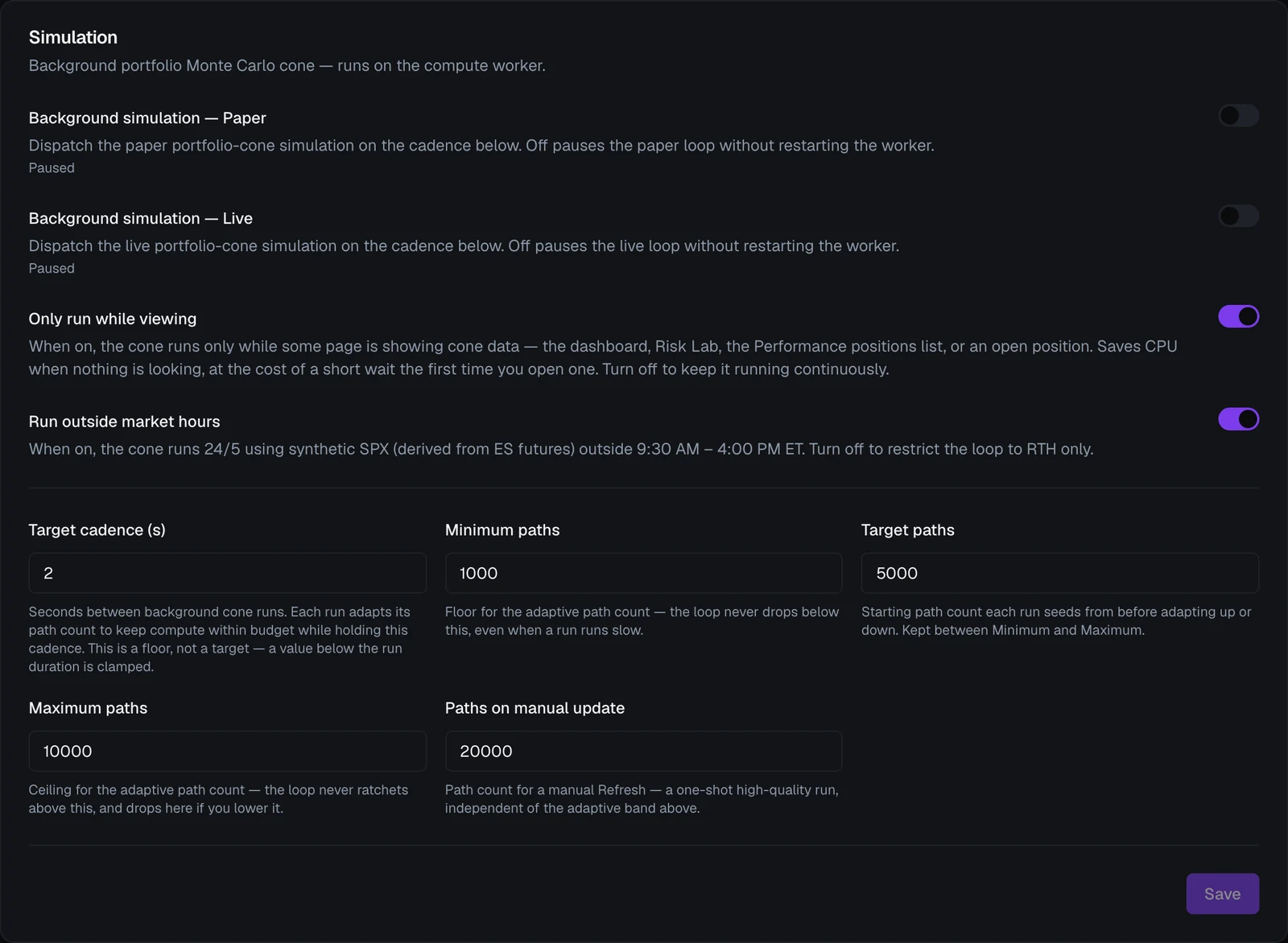
- Background simulation — Paper and — Live — run the loop for that mode, or switch it off. Off pauses that loop. Under each switch is that mode's current state: Running, Paused when you've switched it off, or Idle — no active viewers when it's on but nothing is open that shows risk figures.
- Only run while viewing — when on, the loop runs only while a page that shows cone data is open: the dashboard, the Risk Lab, the Performance positions list, or an open position. Close them all and it stops; open one and it starts again, so the first numbers take a few seconds to appear. Turn it off to keep the loop running continuously.
- Run outside market hours — when on, the cone keeps running around the clock on weekdays using a synthetic SPX price derived from ES futures. Turn it off to restrict it to regular trading hours.
- Target cadence (s) — the shortest gap between runs. It's a floor: if a run takes longer than the value you set, the next one starts when the last finishes. Each run adapts how many paths it simulates to hold this cadence within its compute budget.
- Minimum paths, Target paths, Maximum paths — the floor, starting point, and ceiling for that adaptive path count. More paths means smoother, more precise numbers and more work per run.
- Paths on manual update — the path count for a one-shot Refresh you trigger yourself, independent of the band above.
Tip
This is the other half of the CPU story. Only run while viewing is the cheapest lever of the lot: it costs you nothing while you aren't looking, and only a few seconds' wait when you are. A longer cadence and lower path counts cost a little precision and freshness in the risk figures, and switching off the mode you aren't trading costs nothing at all.
Preferences
Preferences is cosmetic: nothing here affects trading.
Display timezone sets the zone timestamps render in across the app, with a Use browser timezone button to match your computer. Rule condition times, market hours, and expiries stay in market time (ET) regardless, because those are what the engine compares against.
Related
- Connecting IBKR — getting Gateway or TWS talking to VolNinja in the first place.
- Market data & subscriptions — how the line budget is spent.
- Execution algos — what the algos in the library actually do.
- Where rules run — which exits rest at your broker, and the conflict handling that applies to them.
- Paper vs live — where the trading-mode switch lives.