
Running a Strategy
A template opens one trade when you run it. A strategy goes a step further: it's a standing set of rules that watches the market for you and decides on its own when to open and close trades, across your templates, without you clicking anything. Once you switch it on, it keeps running until you turn it off.
This walkthrough builds a small but real strategy from scratch: open one of your templates after 10:00, at most twice a day, at least 30 minutes apart. It rehearses in Paper without trading, then trades in Paper, and only then goes live. Each step links to the article that covers that screen in full.
Before you start
- A template to open. A strategy's main job is deciding when to open your templates, so build one first. See Building a Template.
- Paper mode. Check the switch in the header reads Paper. See Paper vs live.
- Market hours. Strategy rules run only during regular trading hours unless you say otherwise, so do the rehearsal steps while the market is open.
1. Create the strategy
Open Automation → Strategies and click New Strategy. In Basic Information:
- Name — say, Morning entries.
- Priority — leave it on Normal. Priority only matters when several strategies could act at the same moment; see Strategies Overview.
- Enabled — leave Paper and Live off for now. You'll switch Paper on once the rule is in place.
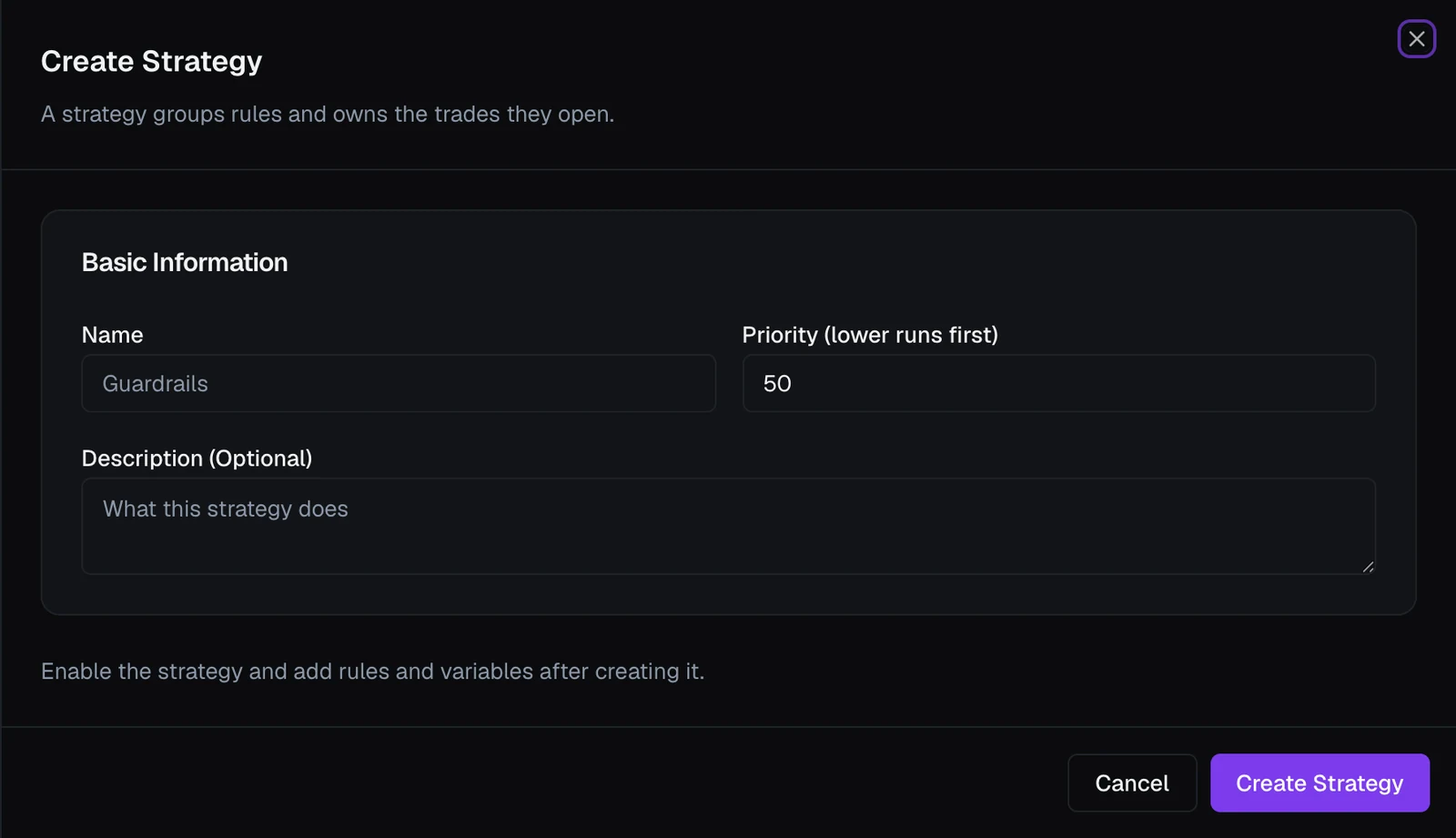
Don't save yet: everything below happens in the same sheet, and Save strategy at the bottom saves it all at once.
2. Add a counter variable
The strategy needs to remember how many times it has entered today. Under Private variables, click Add variable and set:
- Name —
entries - Type — number
- Value — Set by actions
- Reset daily automatically — ticked, so the count starts over each trading day
- Default value —
0
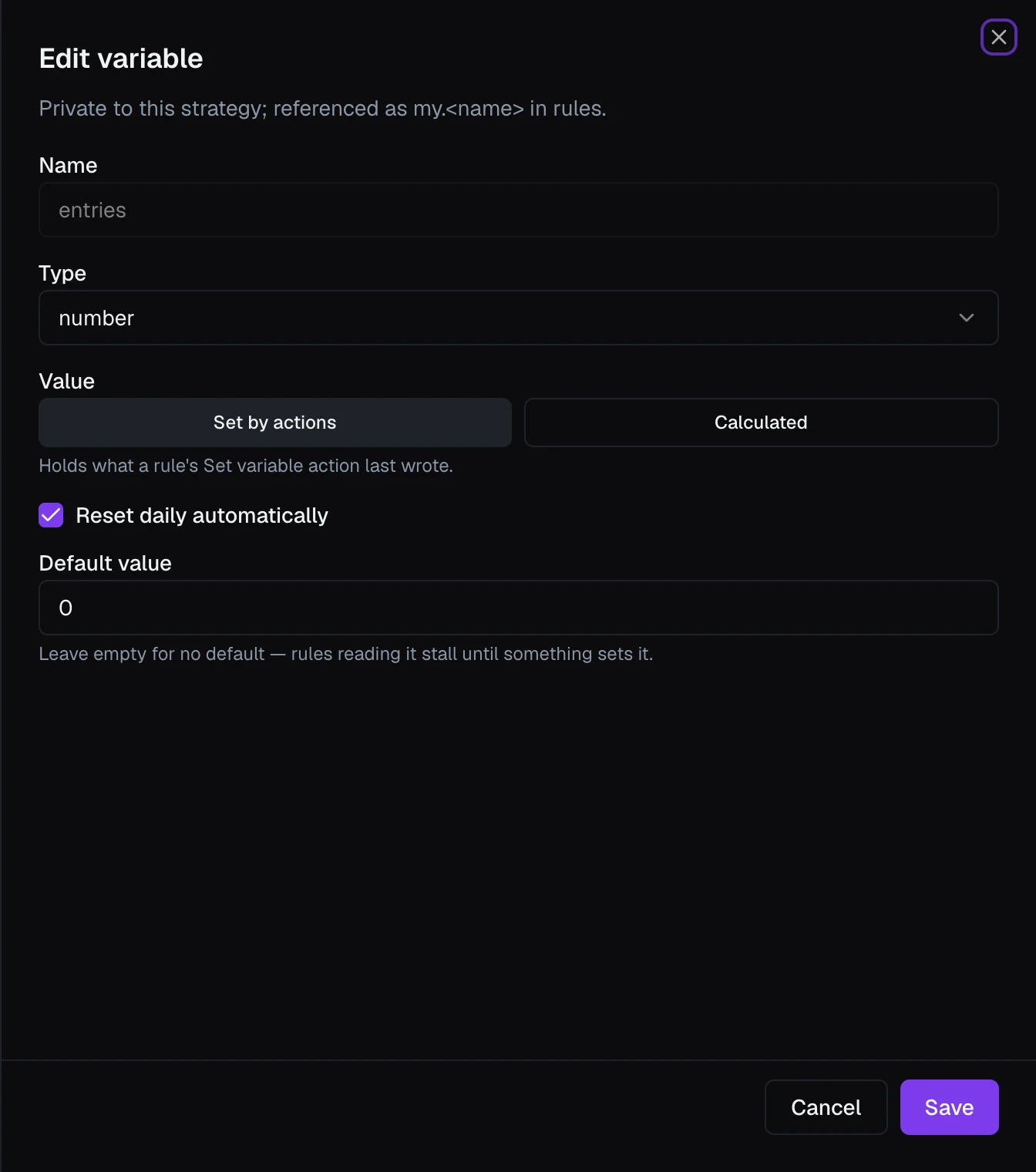
Click Add. Rules can now read and change my.entries. See Strategy Variables.
Tip
VolNinja already counts a strategy's entries in the built-in My Entries Today field, and you could cap on that directly. A variable of your own is the general tool: the same pattern counts anything, such as profitable exits or how many times a level was touched.
3. Add the entry rule
Under Rules, click Add rule. In the Create Rule sheet:
- Name — Morning entry.
- Conditions — two rows, both of which must hold (see Rules & Conditions):
- Add condition → Field Current Time, Operator after, Value 10:00.
- Add condition → Field
my.entries, Operator <, Value 2.
- Actions — two, run in order (see Strategy Rules):
- Add action → Execute template, pick your template, and leave Multiplier on Value · 1.
- Add action → Set variable, Scope my (private), Variable entries, value
my.entries + 1.
- Gates:
- Cooldown (s) —
1800, so a second entry waits at least 30 minutes after the first one fills. - Only during market hours — leave it on.
- Log only (don't act) — on, for the rehearsal.
- Cooldown (s) —
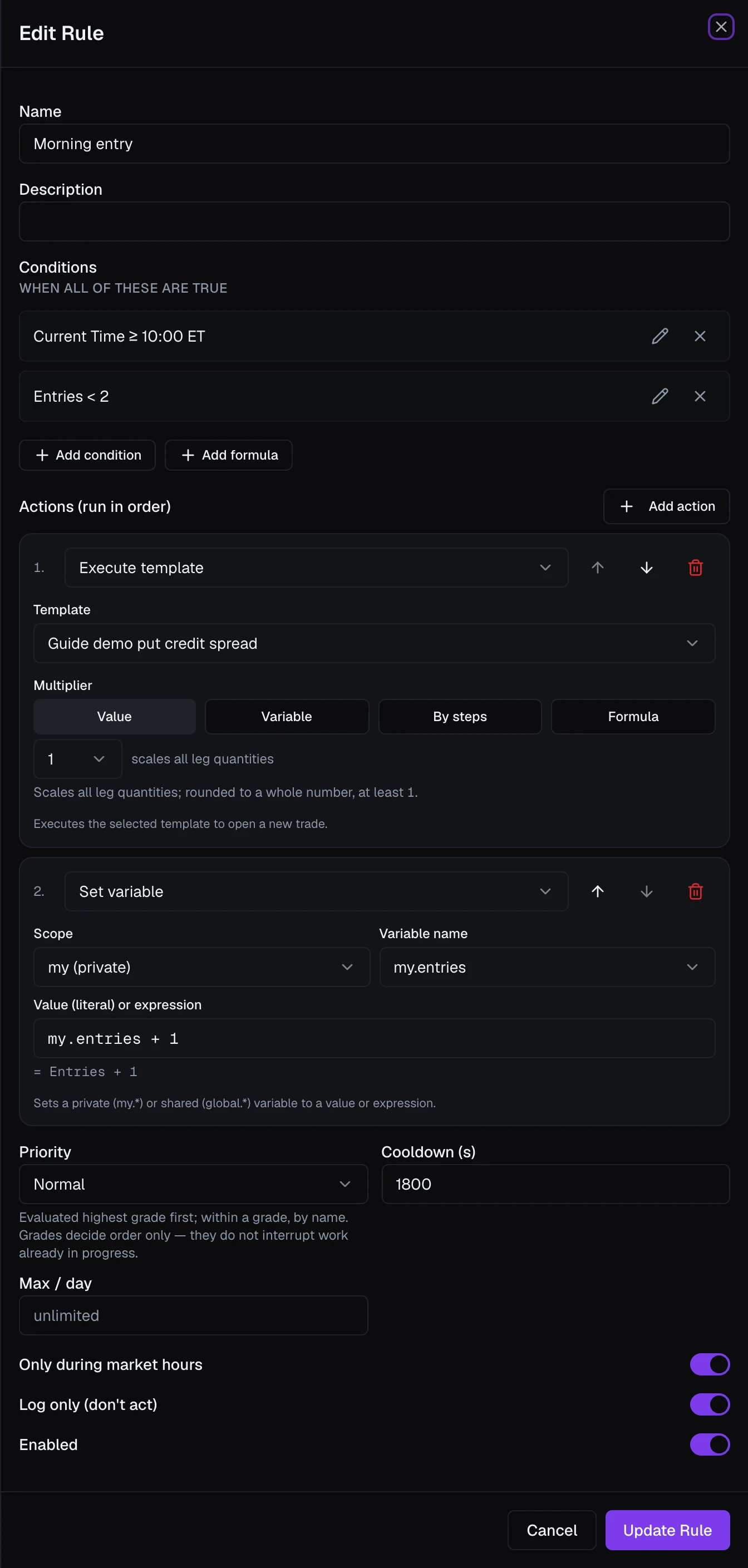
Click Create Rule, then Save strategy.
4. Rehearse in Paper with Log only
On the strategy's card on the Strategies page, turn on Paper. The strategy is now running against your paper account, but because its one rule is Log only, it records what it would do and does nothing.
After 10:00, open the Event Log tab. Each time the rule's conditions come true you'll see a firing marked Logged. Click it and Why it fired shows the values the rule saw: the time, and my.entries at 0. See Monitoring a Strategy.
While rehearsing, the rule logs again every 30 minutes, because Set variable is one of the actions Log only holds back, so the counter never moves. That's expected. What you're checking is that it fires when you meant it to, and not before.
5. Let it trade in Paper
Open the strategy again (its name or the pencil), edit the rule, turn Log only off, click Update Rule, then Save strategy. Now the rule acts in Paper:
- After 10:00 it opens your template, and the new position appears on your Dashboard.
- On the Dashboard's Strategies card, click the strategy to open its runtime view. On Information,
my.entriesnow reads 1. - On Events, the firing reads Filled, with its fill price.
- Thirty minutes after that entry filled, it can enter once more; then
my.entriesis 2 and the rule stays quiet until tomorrow's reset.
Each position the strategy opens takes its own copy of the template's rules the moment it opens, and manages and protects itself with them from then on, whatever happens to the strategy later.
6. Go live
When the Paper results look right, turn on the strategy's Live switch on its card. Paper and Live are independent: the strategy can run in either, both, or neither, and its Live switch is not governed by the header's Paper/LIVE switch. The header changes what you're viewing and where your manual actions go; a strategy's own Live switch is what puts it on real money, and it keeps running in the background whatever the header says.

Warning
Turning on a strategy's Live switch is the "go live" decision. From that moment it can place real orders with real money, on its own, even while you're looking at Paper. Prove a strategy in Paper first, and never submit test orders while you are in live mode.
Pause, resume, or remove
- Pause a strategy by turning off its switch for that mode: on its card on the Strategies page, on the Dashboard's Strategies card, or in its runtime view. It stops acting in that mode immediately; the other mode is unaffected.
- Resume by turning the switch back on.
- Delete a strategy with the trash icon on its card and confirm. Trades it already opened keep running under the rules they were opened with, so deleting the strategy doesn't close them.
Important
Pausing or deleting a strategy stops it from opening new trades, but it does not close positions that are already open. To stand down completely, pause the strategy and close the open positions yourself. See Opening & Closing Positions.
For the full tour of the Strategies page, see Strategies Overview. To have automation only manage one position rather than trade across templates, see Automating Exits & Management instead.