
Connecting IBKR
VolNinja places every order and streams every quote through your Interactive Brokers account. Connecting it is a three-part job: get IBKR's connection app running, turn on its API, and tell VolNinja which ports to use. A one-time setup wizard walks you through that last part the first time you open the app.
This page assumes VolNinja is already installed and running. If not, start with Installing & starting VolNinja. Once the basics work, Recommended IBKR setup covers running paper and live at once and keeping an eye on your account from your phone while VolNinja trades.
1. Get IBKR Gateway or TWS running
IBKR gives you two apps that can carry the connection. Install one on the same machine as VolNinja and log in:
- IB Gateway — a small, no-frills app that does nothing but hold the API connection. It is lighter, more stable to leave running, and the recommended choice, especially on a VPS.
- Trader Workstation (TWS) — IBKR's full trading platform, which exposes the same API.
Either works with VolNinja.
2. Turn on API access in IBKR
VolNinja reaches IBKR through its API, which is off by default. In Gateway or TWS, open the API settings (Configure → Settings → API → Settings in Gateway, or Global Configuration → API → Settings in TWS) and:
- Turn on Enable ActiveX and Socket Clients.
- Uncheck Read-Only API — VolNinja needs to place and manage orders, not only read them.
- In the Precautions tab, turn on Bypass Order Precautions for API Orders. Without it, IBKR can reject valid orders without telling you: its precaution warnings (order size, value, and price limits) are pop-ups meant to be clicked, and an automated order has no way to answer them.
- Allow connections from the same machine (add
127.0.0.1to the trusted addresses). - Note the Socket port. The standard values are:
- IB Gateway — 4001 live, 4002 paper.
- TWS — 7496 live, 7497 paper.
Apply the changes, and restart Gateway or TWS if it asks you to.
If you plan to let rules rest at your broker (stop/limit orders that live at IBKR — see Where rules run), also turn on Bypass No Overfill Protection precaution for destinations where implied natively in the same Precautions tab, so their linked stop-and-target groups are accepted. This option only exists on newer TWS/Gateway versions.
Important
Your paper and live logins have separate API settings. If you plan to use both, enable the API the same way while signed into each one. Turning it on for your live account does not turn it on for paper.
Tip
IB Gateway signs itself out on a schedule by default. In its settings, set a daily auto-restart time (or turn off the automatic logout) so your connection doesn't drop in the middle of a session. This matters most when VolNinja runs unattended on a VPS.
3. Tell VolNinja which ports to use
The first time you open the trading app, a short setup wizard appears before the trading screens and collects everything VolNinja needs.
Step 1 — Connect your broker. Enter your Live account port and, if you use one, your Paper account port (optional). Each field shows the standard values (IB Gateway 4001/4002 · TWS 7496/7497). Use whichever matches the app you are running.
- Advanced — client IDs (optional): VolNinja opens several connections to IBKR (Trading live and paper, Market data, Monitoring live and paper), each with its own unique connection ID. The defaults work unless another IBKR API client is already using them; if you change them, each must be unique.
- Save & test (optional): saves your ports and checks the connection right away, reporting Connected — live (or paper) or "Couldn't connect — is IBKR Gateway running?".
- Click Continue.
Step 2 — Market data. Pick your Subscription budget (lines): the total number of market-data lines on your IBKR account, in 100-line bundles. IBKR gives every account 100; telling VolNinja your total lets it stay within it. If you need more, you buy extra 100-line bundles from IBKR directly, not through VolNinja. Click Finish setup (or Back to change your ports).
You can revisit all of this any time under Settings → Connections and Settings → Market data.
Warning
When VolNinja is set to live, every order is real money at your broker. Never submit test orders in live mode. Switch to paper whenever you want to experiment. You choose the active account with the trading-mode switch in the header; see Paper vs live.
Confirm the connection
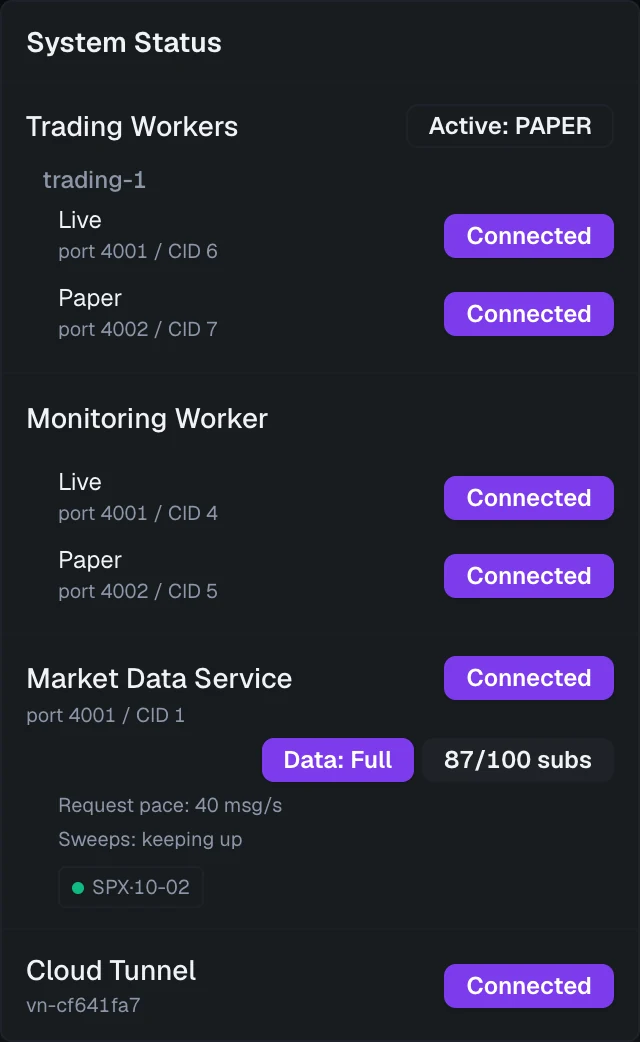
Once IBKR is running with the API on and your ports are saved, VolNinja connects on its own. Check it from the System Status indicator in the top bar, the activity badge that reads Healthy, Issues, or Loading…. Open it to see each connection VolNinja keeps to IBKR:
- Trading Workers — your Live and Paper trading connections.
- Monitoring Worker — a read-only watcher that keeps an eye on your positions.
- Market Data Service — the live quote feed.
When IBKR is reachable, these rows read Connected and the header badge shows Healthy. While a connection is coming back on its own, the badge reads Reconnecting…. If a connection shows Disconnected, click Reconnect to retry.
Tip
Outside market hours a healthy connection still shows Connected, but quotes and the SPX price read as a dash (—) until the market opens and data starts flowing. That is normal: you are connected and waiting for data, not disconnected.
Important
The Market Data Service row also shows a live count like 42/100 subs: how many quote lines VolNinja is streaming against IBKR's limit (100 at a time unless you've bought more). VolNinja manages these lines for you, and a full count is normal: spare lines are spent on extra live coverage. How well your data is keeping up is shown by the Data pill beside it (Full, Thinned, Degraded, or Impaired). See Market data & subscriptions.
If it won't connect
Run through these checks (see Troubleshooting for more):
- Gateway or TWS is running and logged in on the same machine as VolNinja.
- The API is enabled (Enable ActiveX and Socket Clients) and Read-Only API is off in the account (live or paper) you're trying to use.
- The ports in Settings → Connections match your app: IB Gateway 4001/4002 or TWS 7496/7497.
- If you changed the client IDs, each is unique and not used by another IBKR client.
Then open Settings → Connections and click Save & test, or open System Status and click Reconnect.
Next steps
Your broker is connected. Now:
- Take the tour — a quick walk through the main screens.
- Place your first trade — get a position onto the Dashboard.