
Formulas & Steps Tables
Most values in VolNinja are a plain number or a field you pick from a list. When that isn't enough, two tools take over, and they work the same way everywhere they appear:
- A formula is something you type: arithmetic, functions, and (in a condition) and / or / not.
- A steps table is a value that changes in steps as something else moves, such as a cap that rises through the morning.
You'll meet them in four places: a formula condition, a condition's Compare to set to By steps, a calculated variable, and a strategy rule's Multiplier or Set variable value. This page explains both tools once; those articles cover only what's particular to each place.
The formula box
A formula box is a single line you type into. As you type, a list under it suggests names (fields and variables), functions, and the keywords and, or, and not, grouped as Variables, Strategy, Market, Position, Legs, Functions, and Keywords. A suggestion matches what you've typed against both its name and its label, so typing entries finds My Entries Today as well as my.entries_today. Press Enter or Tab to insert the highlighted one, or keep typing.
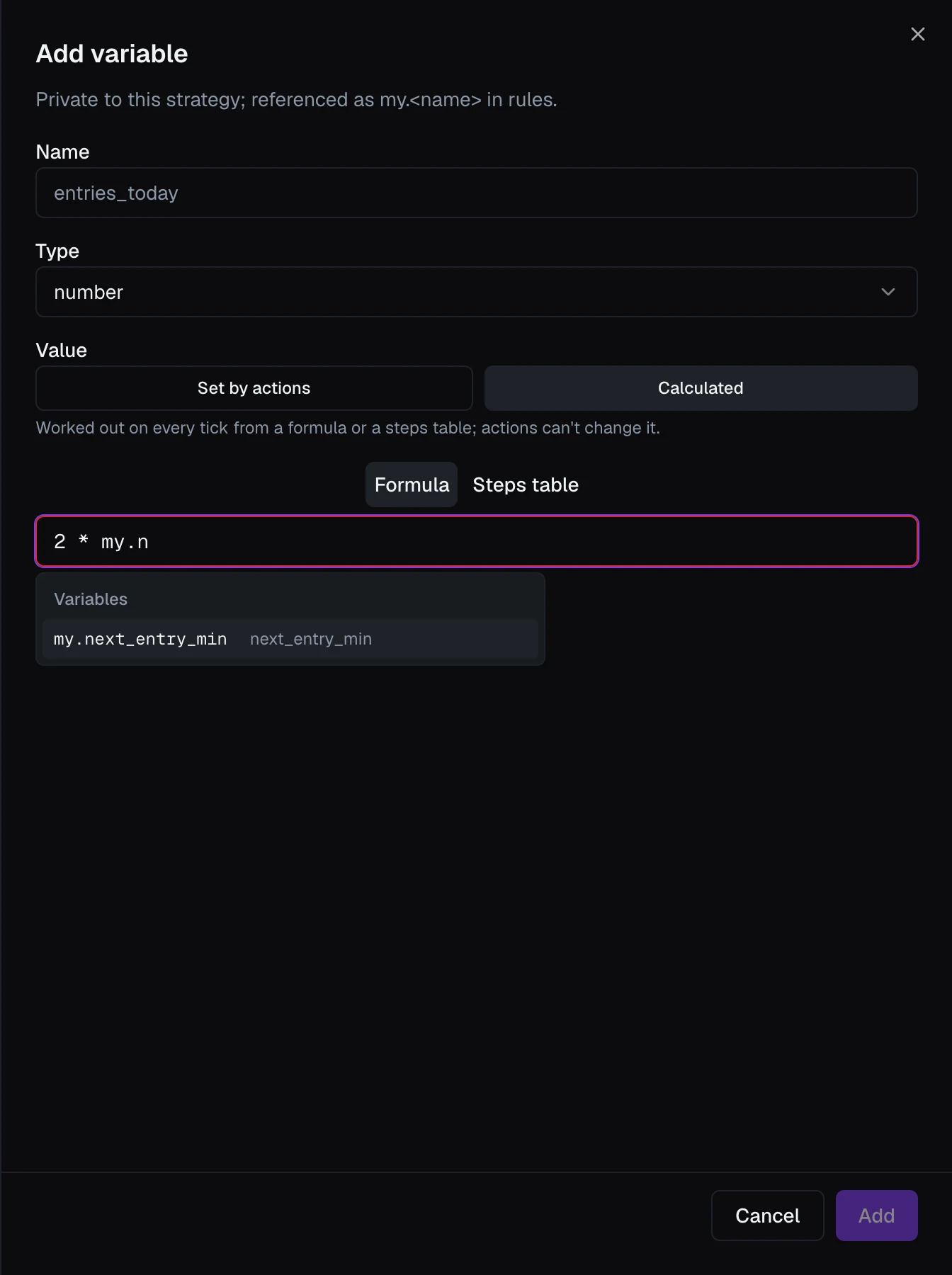
What you can type:
- Names, exactly as the suggestion list shows them:
engine.minutes,strategy.open_count,my.base,global.regime,agg.winners. A leg field carries its leg's name, so the box knows which leg you mean. - Numbers, including
.5and1e3, and arithmetic with+ - * /and brackets. - Functions:
abs((absolute value),min(andmax((the smaller or larger of two or more values), andround(. Typing(adds the closing)for you.
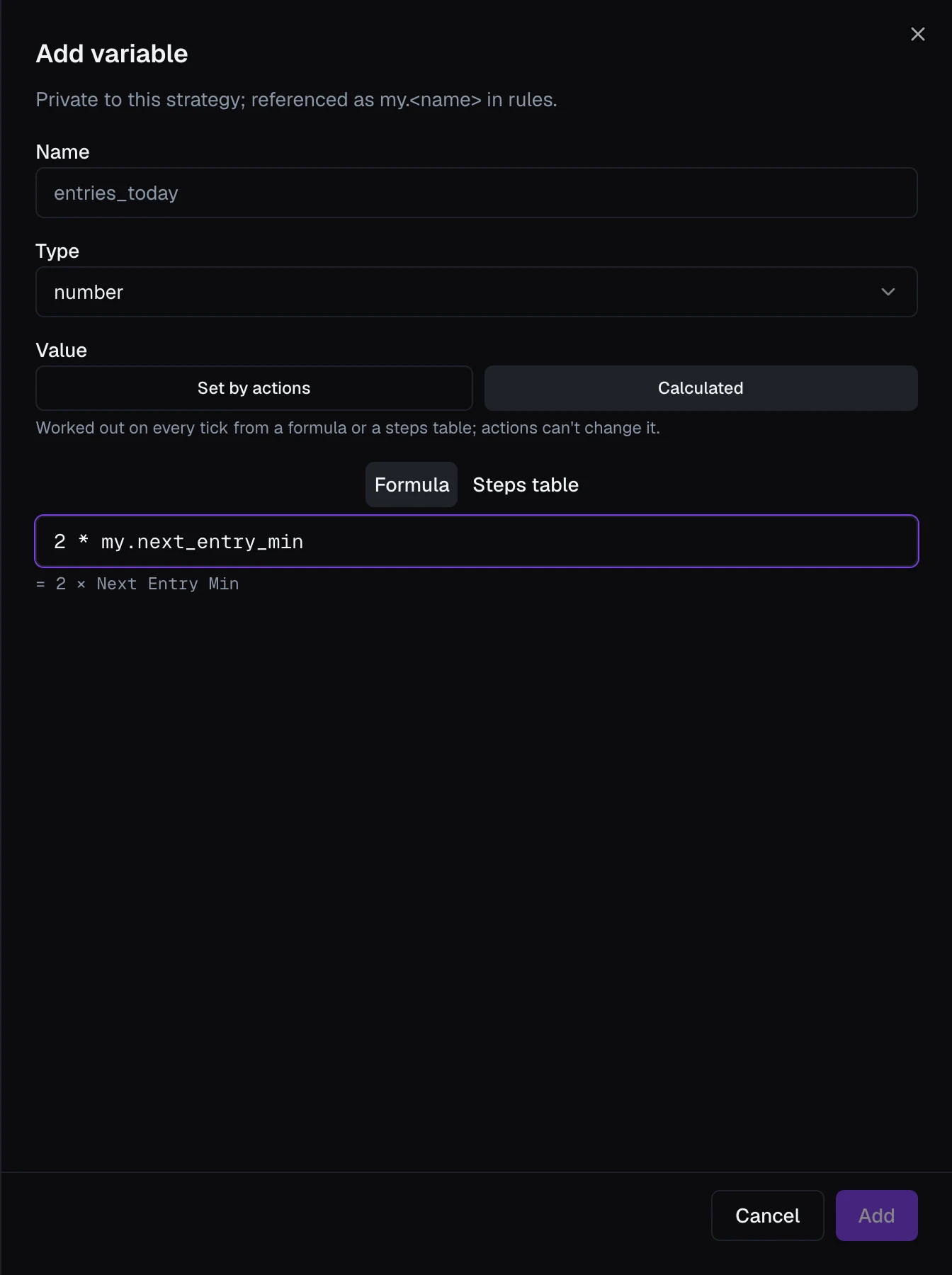
The line under the box is the check. Once what you've typed parses, it restates it in plain words (= 2 × Next Entry Min). If it doesn't, it shows the text around the mistake with the exact spot marked: an unknown name suggests the closest match, and it catches a function given the wrong number of values or an unmatched bracket. Save waits until that line is valid, wherever the box appears.
Typing a condition
When the box holds a condition (the Formula condition panel, opened with Add formula under a rule's conditions), it takes comparisons too:
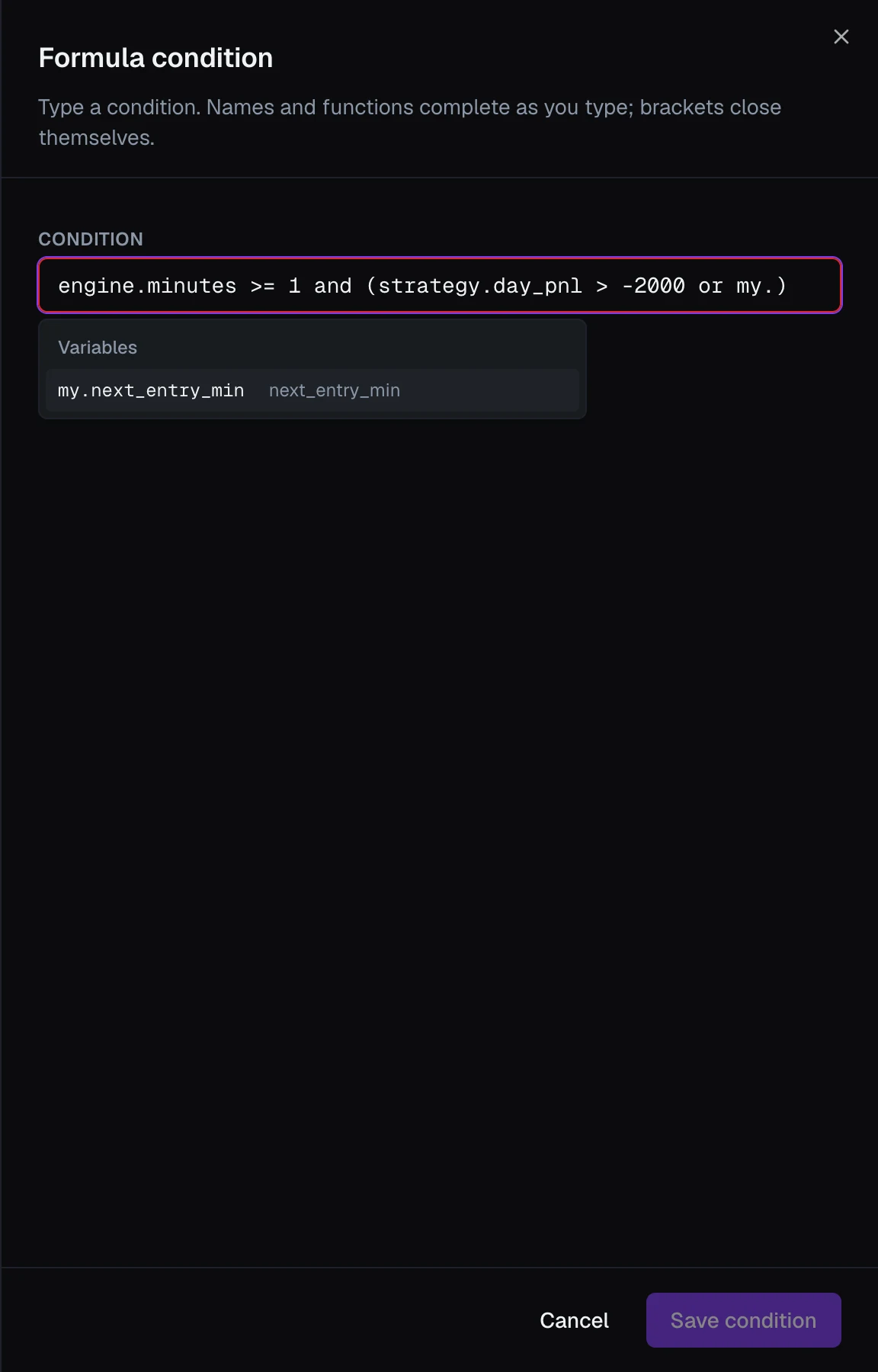
- Compare with
>=,<=,>,<,=, or!=(≠works too), and join comparisons with and / or. - Add one level of brackets to mix the two:
engine.minutes >= 1 and (strategy.day_pnl > -2000 or my.next_entry_min = 1). A barea and b or cis refused with a nudge to add brackets, rather than guessing which one binds first. - Put not in front of a single comparison to flip it (
not my.override = true). It can't go in front of a whole bracketed group; write the opposite comparison instead. - A time field compares against a bare time (
09:31), a yes/no field againsttrueorfalse, and a text field against quoted text ("spx_iron_condor"): the same type rules the simple editor enforces.
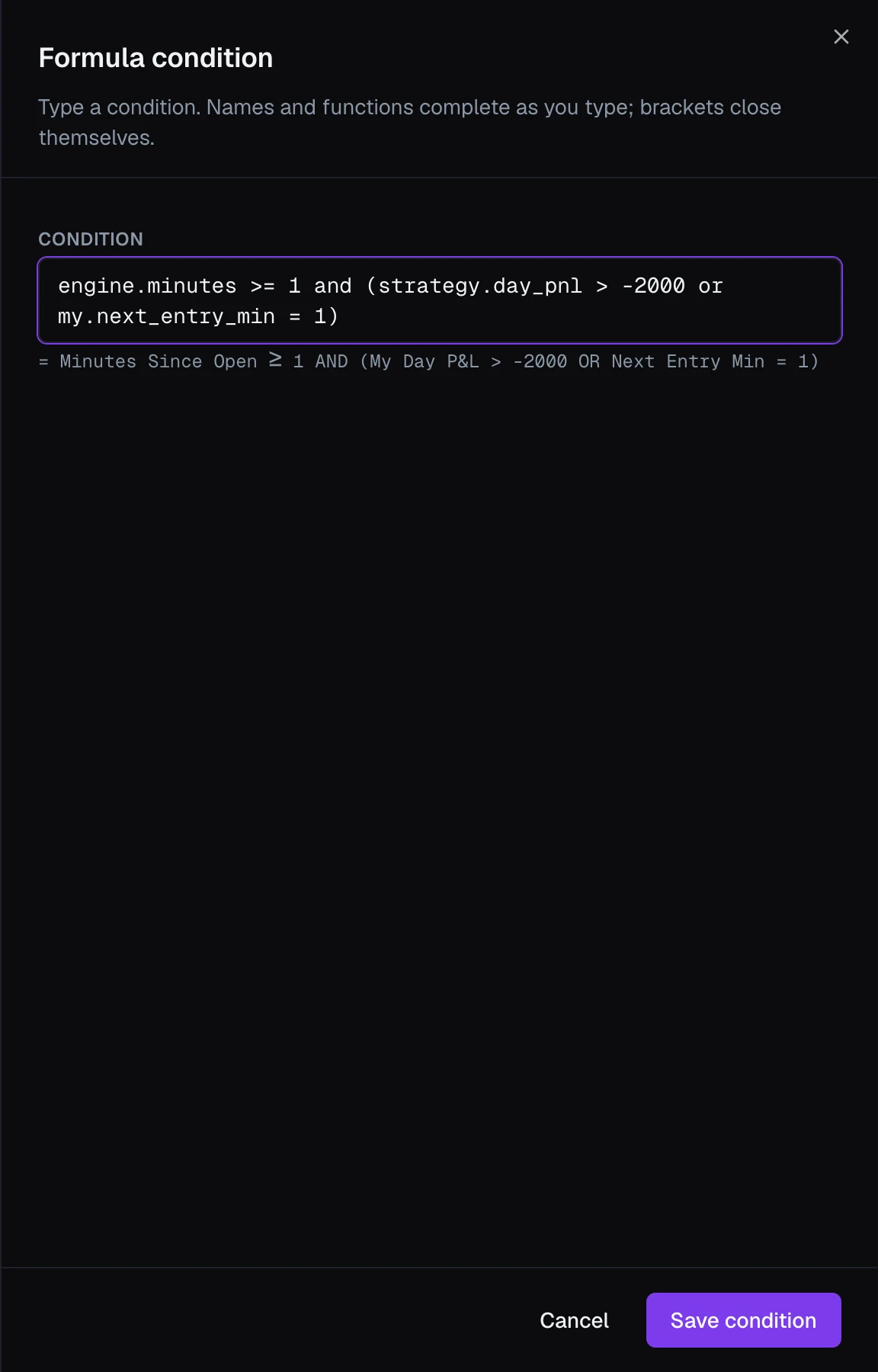
The plain-words line reads like the rest of the app (= Minutes Since Open ≥ 1 AND (My Day P&L > -2000 OR Next Entry Min = 1)), and Save condition waits until it is valid.
Tip
On a rule that closes a position, a formula's and / or doesn't decide whether it can rest as a real order at your broker; its P&L target does. A rule with a target becomes one resting order, and its conditions, formulas included, only decide when that order is armed. A rule with no target runs in the app. See Where rules run.
Steps tables
A steps table is a value that follows another number in steps. You pick Steps on, the field the steps follow (the time of day, minutes since the open, a variable, any number), then list where each step starts (from) and what it's worth (value).
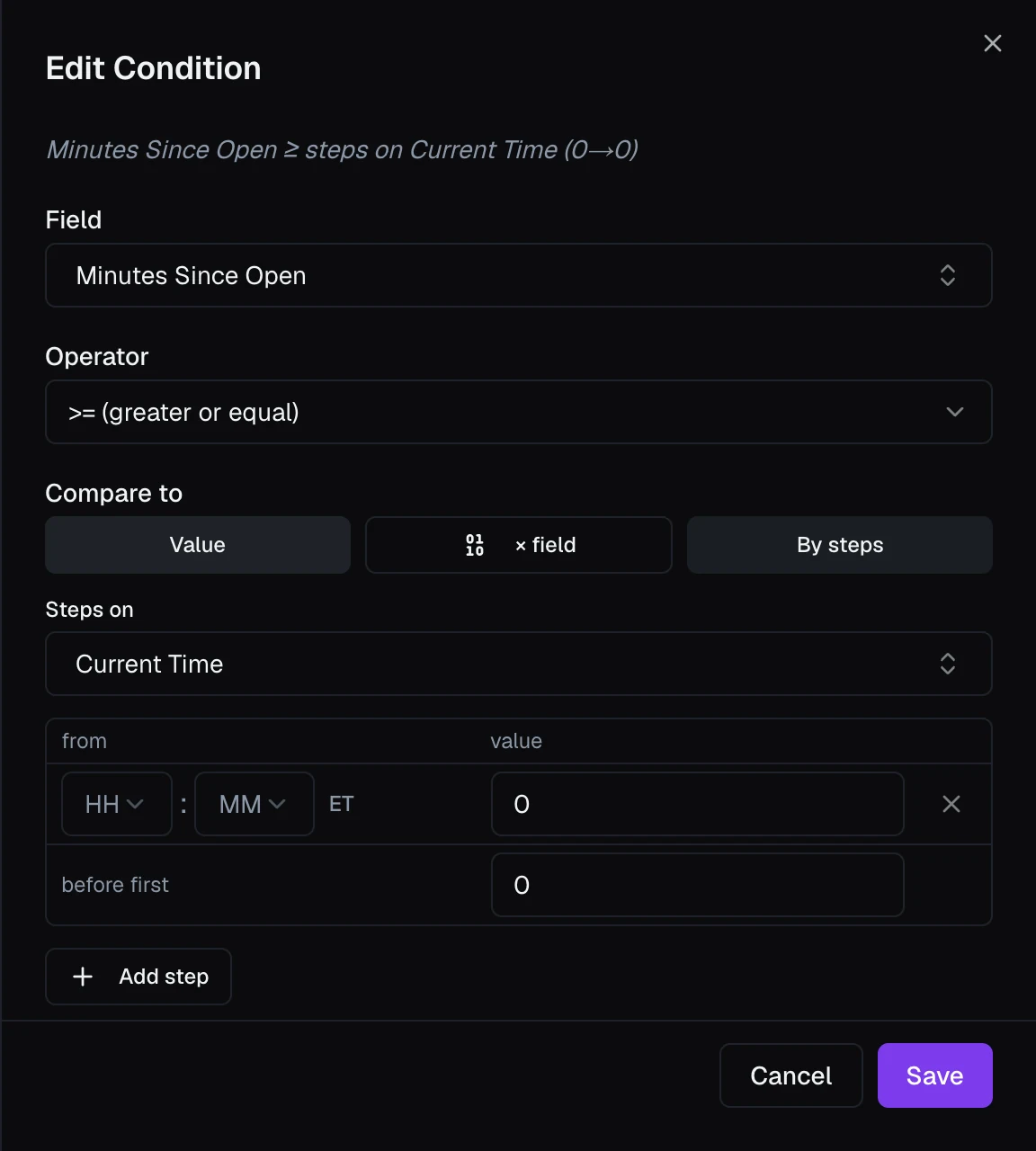
How a table reads:
- There is no "to". Each step holds until the next one's from, and the last step runs on with no end. To stop a schedule at a point, add one more step worth 0.
- Steps stay sorted by from as you add them, and two steps can't start at the same value.
- The before first row covers anything earlier than the first step.
- Add step adds a row, up to 32 steps per table.
- If the field the steps follow has no data yet, the value is unknown and anything reading it waits, rather than falling back to the before first value.
So My Open Count < steps on Time (1→6) reads as: from 09:31 the cap is 1, from 09:33 it becomes 2, and so on through the morning.
Where a steps table can go
- In a simple condition, set Compare to to By steps (number fields only). The condition keeps its single readable row; the formula box doesn't type steps tables.
- In a number calculated variable, choose Steps table instead of Formula.
- In a strategy rule's Multiplier, choose By steps.
A value is either typed or built from steps, never both, so switching between Formula and Steps table starts that side fresh.