
Automating a Position
Templates and strategies set up automation before a trade opens. But sometimes you open a position, by hand or from a template, and only then decide it needs a rule or a safety net. You can attach automation to any single open position after the fact, right from its details, without touching the template it came from or any of your other positions.
Open a position from your Dashboard to bring up its details sheet (see Position details) and go to the Rules tab. Everything this position does on its own lives there, in one list — the same rules explained in Automating exits & management, scoped here to this one trade.
Important
This tab edits automation on an open position. Once a position is closed, it becomes read-only history. You can look, but there's nothing left to manage.
The Rules tab
The Rules tab lists this position's rules. Click Add Rule to create one; it opens the same rule editor used on templates (conditions and actions work the same everywhere; see Rules & conditions). Each rule then appears as a card showing:
- Its priority grade — Critical, High, Normal, or Low; the highest grade is evaluated first.
- The conditions it watches and the action it takes when they're met (Close Position, Close Leg, and so on).
- A venue badge saying where the rule is enforced right now.
- Controls to pause, edit (pencil), or delete (trash) it.
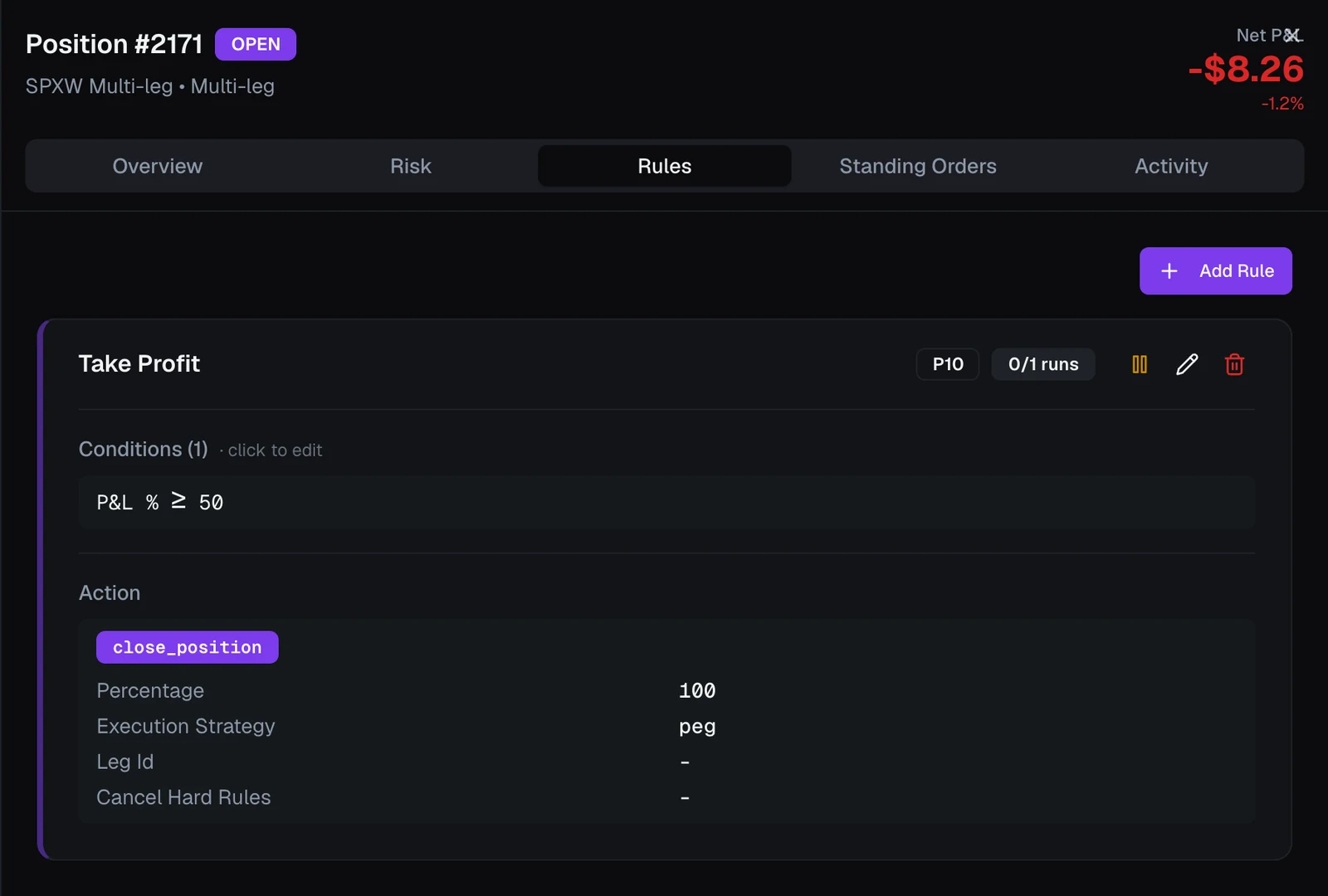
Read a rule card
The body of each card reads top to bottom as what it aims at, when it acts, what it does:
- P&L target — on a close rule, the profit or loss level it closes at, such as a 50% take-profit. This is the price a rule can rest at your broker. none — runs in the app means the rule has no target, so it can only be checked by VolNinja.
- While (n) or When (n) — the rule's conditions, with how many there are. While appears on a rule with a P&L target: its order stands at the broker while these conditions hold, and is pulled when they stop. When appears on a rule without one: the conditions themselves are what make it fire.
- Action — what happens when it fires, with its details (the leg, the algo, and so on).
A rule with no conditions at all shows Never — no conditions: it has nothing to fire on, so it never runs. The one exception is a close rule with a P&L target, which shows Always: its target alone decides when it closes.
Read the venue badges
The header above the list counts how many of this position's rules are currently resting at your broker — "2 of 2 standing". The count is out of the rules that can rest, so a rule with no P&L target is not in the denominator. Each card carries its own badge:
- standing at broker — a real order is resting at Interactive Brokers and will fire even if VolNinja or your machine is off.
- runs in app — VolNinja enforces this rule itself, while it is running.
- arming… / cancelling… — the order is on its way to or from the broker.
When a rule can't be expressed as a resting order, the badge keeps its state and adds the reason after a dot — runs in app · no price to rest at, · another position already holds this contract's order slot. A resting order can also read standing at broker · price not updating: it is still there protecting you, at a level VolNinja can no longer move. This is the live truth about your protection, read back from the broker rather than from what you intended. For what decides it, see Where rules run: broker vs app.
A rule that rests as a stop shows both of its prices — trigger $8.40 · limit $8.82 — because the trigger is what decides when your protection fires and the limit is only the cap on the fill. Once the position is closed or expired, the badges and the standing count go away: there is no venue left to report.
Because a resting order is placed from the rule itself, pausing a rule also withdraws its broker order, and resuming puts it back. Deleting a rule cancels its order for good.
Read the execution counts
Every rule card carries a runs badge counting how many times it has already fired, like 2 runs or 0/1 runs when you've set a maximum. Once a rule reaches its cap, the badge turns red and the rule stops firing. To let a capped rule run again, click Reset execution count (the ↺ button). Pause (⏸) suspends a rule without deleting it: it dims and shows a PAUSED badge. Resume (▶) brings it back.
If any entry rules fired when the position first opened, a collapsed Entry Rules (already executed) card appears below the active rules, listing them for reference only.
Warning
On a position trading LIVE, editing, pausing, or deleting a rule can change real broker orders — a paused stop is a cancelled stop. Prove your automation in Paper first, and never submit test orders while you are in live mode (see Paper vs live).
What "this position" means
Everything you do on this tab affects only this one position, never the template it was opened from and never your other open trades. Each position carries its own copy of its rules (see Automating exits & management for how that snapshot is taken at open). To change the automation that future trades start with, edit the template instead. See Management rules.