
Alerts
Alerts tell you what VolNinja is doing while you're away from the screen: a position opened or closed, an order the broker refused, IBKR dropping its connection, or VolNinja itself going quiet. They arrive by email, by Telegram, or both, and you pick which ones you want.
Open Settings from the avatar menu in the top right and choose Alerts from the list on the left.
Important
An alert carries details of your trade (the underlying, the strikes, the P&L) and is delivered through our email provider and through Telegram, either of which may keep a copy. VolNinja's own servers hold an alert's text only until it has been delivered. Your positions and history otherwise stay on your machine; see How VolNinja works.
Channels
The Channels card shows where alerts can go, and lets you check that each one works.

- Email — the address on your VolNinja account. It can carry alerts once it shows Verified. While it shows Not verified, its checkboxes and its Send test button stay greyed out.
- Telegram — shows Not connected until you link a Telegram chat (below), then Connected as @yourname.
Send test sends a short "VolNinja test alert" to that channel right away, so you know messages are getting through before you rely on them. The button turns into Sent for a few seconds. If you press it many times in a row, VolNinja asks you to wait a few minutes before trying again.
Connecting Telegram
- Press Connect Telegram. A new tab opens on Telegram's site, pointing at the VolNinja bot.
- Open the chat in Telegram and tap Start. Meanwhile, the Alerts section reads Press Start in Telegram to finish connecting…
- Within a few seconds of tapping Start, the line changes to Connected as @yourname. That's it.
If no tab opened (some browsers block it), use the Open Telegram button that appears next to Connect Telegram. The link is single-use and works for 10 minutes; if it runs out, press Connect Telegram again for a fresh one.
To stop Telegram alerts altogether, press Disconnect. Your choices in the table below are kept, so reconnecting later brings them back.
Tip
Send a Telegram test as soon as you've connected. The message should appear in the VolNinja bot chat within seconds.
What to send
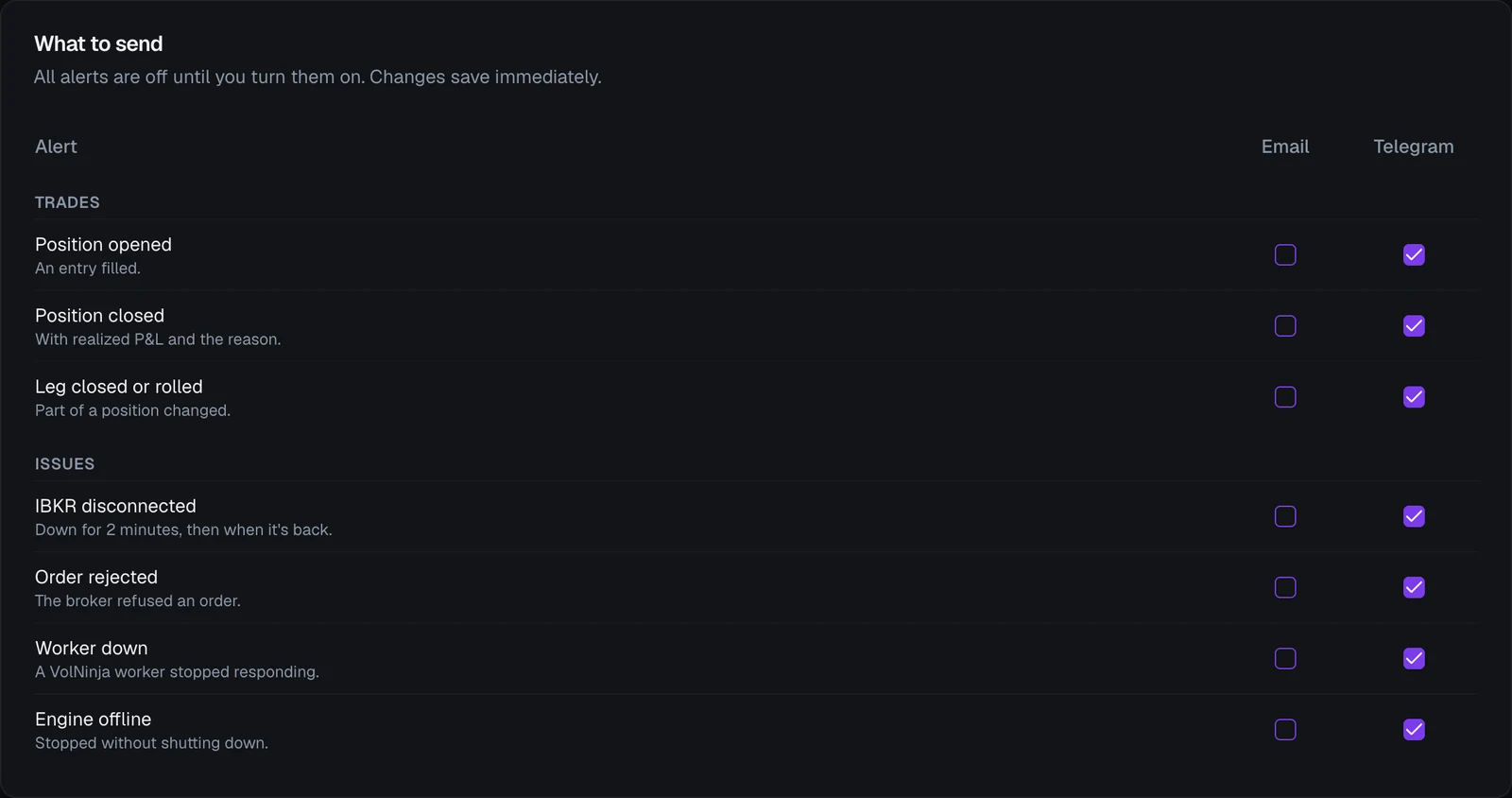
The What to send table has one row per alert and one checkbox column per channel. All alerts start off: nothing is sent until you tick a box. Each tick saves the moment you click it; there is no Save button in this section.
A channel's column stays greyed out until that channel can deliver: email until it's verified, Telegram until it's connected.
Trades
| Alert | Sent when | What it looks like |
|---|---|---|
| Position opened | An entry filled. | ✅ SPX opened · template name · credit 4.25 · Morning entries · Morning entry |
| Position closed | A position closed completely, with its realized P&L and what closed it. | 🏁 SPX closed · template name · +$170.00 · Take Profit |
| Leg closed or rolled | Part of a position changed while the rest stayed open: one leg closed (with that leg's realized P&L), or a leg rolled to a new strike. | ↘️ SPX leg closed · template name · −$120.00 · Stop Call 1.55x, or 🔁 SPX rolled 7705 → 7720C · template name · rule name |
Each trade alert ends with what caused it: the rule's name, Strategy · rule for a strategy's rule, standing order: and its name when a standing order filled at your broker, manual when you did it yourself, or expired. It lists the legs underneath, for example SELL 2 7705C 2026-10-26. Trades placed in paper mode are marked [Paper] at the start, so a paper fill never reads like a live one.
Issues
| Alert | Sent when |
|---|---|
| IBKR disconnected | VolNinja has lost its connection to IBKR for 2 minutes. A second message follows when the connection is back, with how long it was down. Market data, live trading and paper trading are reported separately, and a mode you have never connected is never reported. |
| Order rejected | The broker refused an order, with IBKR's reason and error code. If the same position keeps having the same kind of order refused, you hear about it once per 15 minutes, not on every retry. |
| Worker down | One of VolNinja's background workers (the market-data worker, or a trading worker that places and tracks your orders) has stopped responding for about 90 seconds, with a follow-up when it's back. The message says which one. Rules handled by that worker are not running while it's down. |
| Engine offline | The VolNinja engine on your machine stopped without shutting down (a crash, a power or network loss, or the computer going to sleep) and has been silent for about 3 minutes. You get a second message when it comes back online. |
Quitting VolNinja normally, or letting it install an update, never triggers Engine offline: the engine says goodbye on the way out. Short blips are also absorbed: an IBKR connection that comes back within 2 minutes, or a network hiccup shorter than the 3-minute window, sends nothing.
Tip
If you trade from a laptop, Engine offline is the alert that catches the lid being closed with positions still open. Turn it on for Telegram.
When alerts arrive late
Every alert except Engine offline starts on your machine. If your machine can't reach VolNinja's servers for a while (the internet dropped, say), the alerts wait and are sent as soon as the connection returns. Any alert delivered more than 10 minutes after the event is marked Delayed — happened at 10:42 ET, so you know the timing.
If the section shows only one line
- Alerts need a VolNinja cloud account. This install runs without signing in to VolNinja, so there is nowhere to send alerts from. See Remote access.
- Alerts aren't available yet. Your account can't use alerts yet. Check back after the next update.
- Telegram: Not available yet. Email alerts work, but Telegram delivery isn't switched on yet.
Related
- Settings — the other sections of the Settings page.
- Paper vs live — why alerts carry a [Paper] marker.
- Automating exits — the rules whose closes these alerts report.
- Connecting IBKR — what to check when IBKR disconnected arrives.
- Troubleshooting & FAQ — matching a status indicator to its fix.